Product comparison
Bitwar File Repair vs Bitwar Data Recovery
The two Bitwar products start from different problems. File Repair processes an existing damaged file, while Data Recovery scans storage for files that are missing or have been deleted. A recovery job can produce a file that still needs inspection or repair, so choose the first step according to what is available.
Compared products
Choose around the file that is available, the loss or damage involved and the supported operation in the installed edition.
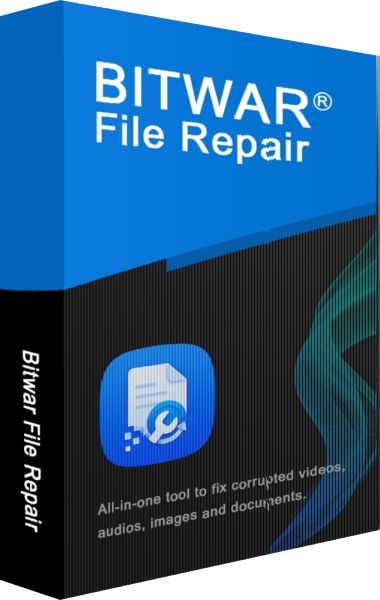
Bitwar File Repair
Repair damaged documents and media files, preview the results and export a checked copy.
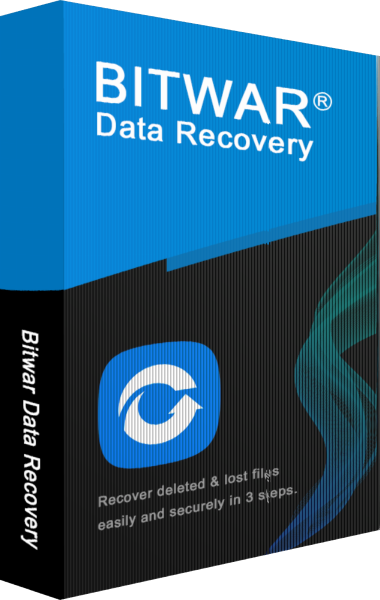
Bitwar Data Recovery
Scan storage for lost files, preview results and recover selected documents, photos and media.
Compare file repair and related tasks
| Task | Bitwar File Repair | Bitwar Data Recovery |
|---|---|---|
| Starting symptom | The file exists but is unreadable, incomplete or fails during playback | The file or folder is missing, deleted or no longer accessible through its usual location |
| Input selection | Import existing damaged files | Select an accessible disk, USB drive or memory card and choose file types |
| Main operation | Repair supported document and media formats | Windows Quick Scan, Deep Scan or Formatted Recovery according to the loss scenario |
| Finding a particular file | Choose the existing source file directly | Review scan results and filter by name, date or size; Deep Scan results can use generated names |
| Preview and output | Preview repaired content and export a separate copy by default | Preview available results and recover a selected set to separate storage |
| Returning to the task | Keep the damaged original and the checked repaired output | Save and import scan results for review; a scan-result file does not contain the recovered files themselves |
Which workflow fits?
Choose File Repair for an existing damaged file
Bitwar File Repair fits an existing document, video, photograph or audio file that fails to open or has damaged content. Keep the source unchanged, repair a copy in a supported format and check the exported result. There is no need to treat an available damaged file as a deleted-file search merely because both tasks use the word recovery.
Choose Data Recovery when the file must first be located
Bitwar Data Recovery searches accessible storage for lost documents, photographs, media and other files. In the Windows workflow, choose a scan mode around the loss scenario, review the available results and recover selected items to separate storage. Inspect the saved files afterward to determine whether their contents are usable.
Recovering a file and repairing its contents are different stages
Data Recovery searches for data still present on storage. Finding a filename or seeing a preview does not confirm that the complete file survived. If a recovered file remains damaged, preserve that recovered copy and use a supported repair task on a separate copy.
File Repair needs an existing input file and does not replace the storage search when that file is missing. Neither stage guarantees reconstruction of overwritten or absent content. Saved scan results support returning to a search; they are not an independent copy of the missing documents or media.
Verify the saved contents
- Check whether an input file is available, and note the exact missing or damaged content.
- For a missing file, avoid new writes to the affected storage and choose the relevant Data Recovery scan mode.
- Save recovered items to separate storage; if repair is needed, retain an untouched recovered copy as well.
- Open the final files in their normal applications and inspect important sections before putting them back into active use.
A recognizable preview or completed progress indicator does not establish that every part of a file is usable. This comparison describes documented workflows and does not report measured repair-success rates or guaranteed reconstruction of missing content.