Product comparison
CamRio Screen Recorder vs Ashampoo Snap Pro 26
CamRio Screen Recorder concentrates on recording screen activity, webcam video and sound, with scheduling and segmentation controls. Ashampoo Snap Pro 26 combines screen recording with screenshots, scrolling capture and OCR. Choose around whether the finished explanation is mainly a video or a set of annotated visual instructions.
Compared products
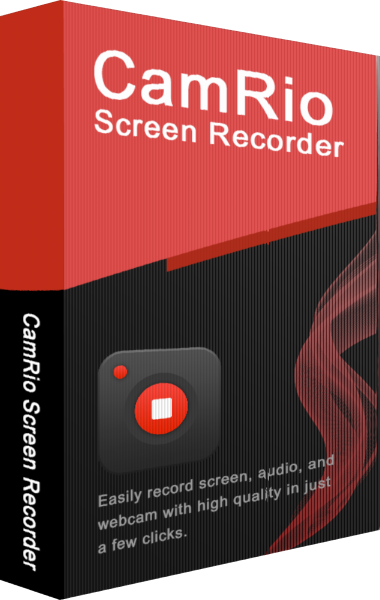
CamRio Screen Recorder
Record screens, windows, webcam and audio, schedule sessions and review or trim saved recordings.
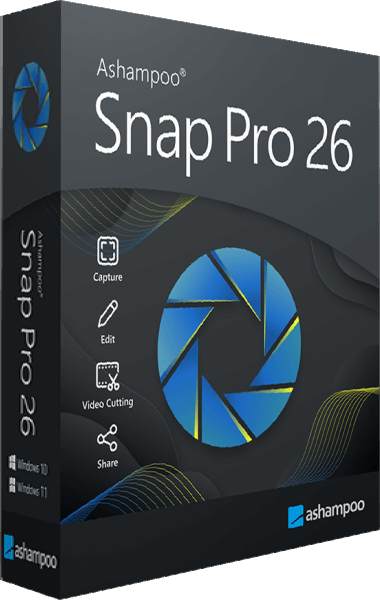
Ashampoo Snap Pro
Capture screenshots and screen recordings, add annotations, and extract text with OCR.
Compare screen capture workflows
| Task | CamRio Screen Recorder | Ashampoo Snap Pro 26 |
|---|---|---|
| Main workflow | Capture demonstrations, gameplay, webcam video or audio | Create screenshots and visual instructions as well as screen recordings |
| Audio and webcam | System sound and microphone input with a movable webcam overlay | Select audio and camera devices, then include the webcam feed during video capture |
| Highlighting an action | Text, arrows and shapes during Area recording | Video drawing controls for arrows and rectangles, mouse-click visualization and screenshot annotation |
| Automatic timing | Scheduled Tasks plus automatic stopping and segment controls | A video timer stops an active recording after a chosen duration |
| Editing the capture | Preview and trim saved clips | Mark video or audio sections for cutting and export selected results |
| Still-image instructions | Use the documented screen-recording workflow for moving demonstrations | Scrolling screenshots, screenshot editing, Live Edit and OCR text extraction |
Which workflow fits?
Choose CamRio for recorded demonstrations and planned sessions
CamRio Screen Recorder combines screen, webcam and sound capture with Scheduled Tasks, Auto Stop and Segment Recording. Choose the capture area and output folder, test the narration and run a short sample. Review saved clips before recording a longer demonstration or lesson.
Choose Snap for screenshots and video in the same explanation
Ashampoo Snap Pro 26 is useful when the job mixes short screen recordings with annotated screenshots and text extracted from images. Select the relevant audio and webcam devices for video capture, then review the clip or screenshot in the appropriate editor before exporting it.
Distinguish scheduled starts, stop timers and OCR
CamRio documents scheduled recording starts and ends. Snap's video timer documents stopping a recording after a selected duration; a timer is not evidence of equivalent unattended start scheduling. Check the required automation in the installed application instead of assuming matching controls.
Snap's OCR extracts text from captured images. It does not establish transcription of spoken narration. Likewise, screenshot export formats and editing tools should not be treated as video export settings. Choose the capture type and inspect its saved output separately.
Test a short recording
- Prepare one short spoken walkthrough and one page that would also benefit from an annotated screenshot.
- Test the selected camera and sound devices, pointer visibility and drawing controls before recording the full explanation.
- For automated capture, verify whether the task needs a scheduled start, an elapsed-time stop or separate recording segments.
- Review the exported clip for readable controls and synchronized narration, and proofread any OCR text before reusing it.
Keep the original recording before trimming or preparing another export. Selected resolution and frame-rate settings do not establish the quality of the saved clip; assess the result at the size and in the player your audience will use.