
Run Windows applications alongside your Mac work
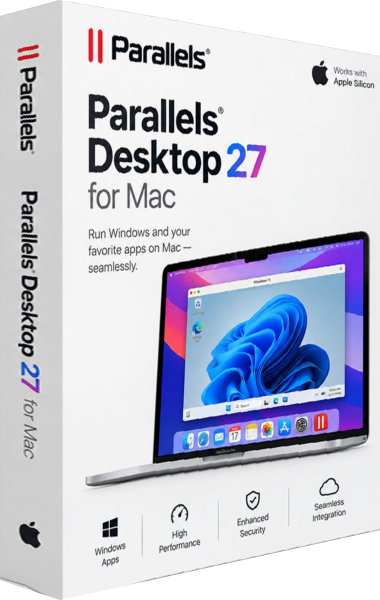
Parallels Desktop 27 runs Windows in a virtual machine while you continue working in macOS. Keep Windows applications available for business, study or specialist tasks without restarting each time you switch between operating systems.
This approach is useful when most of your work happens on a Mac but a particular task depends on Windows software. Plan around the applications and documents you actually use, and verify those workflows before moving an existing project.
Keep familiar applications within reach
Windows applications can appear in the Mac Dock and access files stored on the Mac. Coherence mode presents application windows alongside Mac applications rather than keeping the entire Windows desktop in view.
Choose how much of your working environment to share. Keep a clear folder structure for documents used by both systems, and decide which application should open each file type to avoid editing the wrong copy.
Set up a Windows environment for your tasks
The installation workflow can download and install Windows 11 on Arm. Windows licensing is separate from the Parallels Desktop license, and applications installed inside Windows retain their own licensing terms.
After setup, install your essential applications and open representative project files. Check printing, file exchange and any specialist peripherals involved in your normal work before treating the virtual machine as your primary Windows environment.
Choose Standard or Pro around the workload
Standard focuses on everyday Windows applications. Pro adds developer tools, advanced networking and expanded virtual hardware limits. In version 27, the Metal-based OpenGL 4.3 graphics driver is a Pro capability.
Business and Enterprise editions add organizational deployment and management functions. Compare the selected edition with your tasks instead of assuming that every capability described for the product family is included in Standard.
Check application compatibility before a migration
Windows on Arm can run many conventional Windows applications through its compatibility mechanisms, but some programs, drivers and graphics workloads behave differently. Application compatibility must be assessed separately from whether Windows itself starts successfully.
For a design or engineering workflow, open a real project and check the complete process from editing to export. For a business application, verify database access, add-ins and document output. A familiar application name alone does not establish that every related component will work.
Organize testing and everyday work
A virtual machine gives you a distinct Windows working environment. Use clear names for machines and project folders so that production documents do not become mixed with experiments or temporary exports.
Before a major change, preserve important documents and an independent backup of the environment you rely on. Shared folders make moving files convenient, but a file accessible from both systems still needs its own backup.
Build a practical Mac and Windows workflow
Start with one complete task: open the source document, edit it in the Windows application, save the result and use it in your Mac workflow. Resolve file locations and application settings before migrating a larger collection.
Keep guest operating systems and installed applications maintained as part of the same routine you use for other work software.