Product comparison
Bitwar PDF Converter vs Corel PDF Fusion
Bitwar PDF Converter combines PDF and Office conversion with scanned PDF OCR and page utilities. Corel PDF Fusion emphasizes assembling documents from supported file types, arranging pages and converting to formats such as PDF, DOC and XPS. Both help prepare documents, but the source material and required output determine which workflow to test.
Compared products
Choose around the source material, the required output and the editing or review steps that follow conversion.
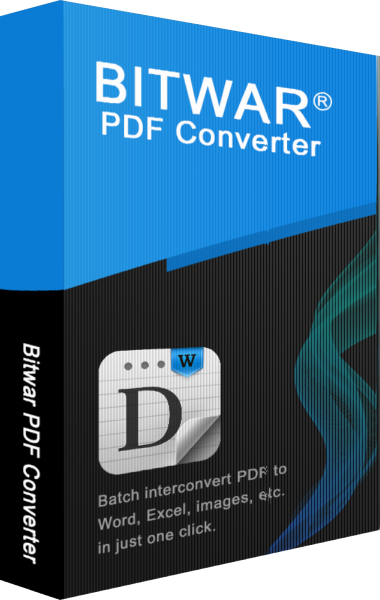
Bitwar PDF Converter
Convert PDF and Office files, recognize scanned text with OCR, and merge, split, compress or protect PDFs.
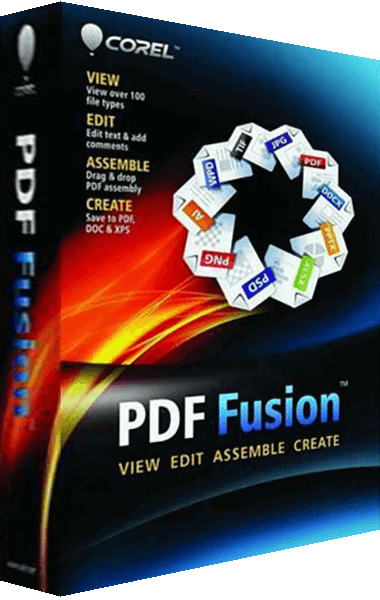
PDF Fusion
Assemble PDF documents, correct text, organize pages and convert supported files for sharing.
Compare PDF and document tasks
| Task | Bitwar PDF Converter | Corel PDF Fusion |
|---|---|---|
| Source material | PDFs, supported Office documents and image files for the selected conversion tool | Assemble content from supported documents, spreadsheets, presentations and images |
| Conversion output | PDF to Word, Excel, PowerPoint, images and other supported outputs; document and image to PDF | Save supported output such as PDF, PDF/A, XPS and DOC; check the chosen conversion route |
| Multiple files | Add several files to a conversion task and process them as a batch | Corel PDF Batch Converter handles multiple files for supported PDF, XPS or DOC conversion tasks |
| Scanned PDFs | A documented OCR PDF option supports scanned PDF to Word or Excel output | The reviewed product information does not confirm an equivalent OCR workflow; do not assume scanned-page text becomes editable |
| Page assembly | Merge, split and rotate PDFs, compress files and extract images | Reorder, rotate or crop pages and assemble a document from selected content |
| Document review | Check converted text, layout and values in the destination application | Correct text and add comments, highlighting, sticky notes or bookmarks within the supported document workflow |
Which workflow fits?
Choose Bitwar for Office output and scanned PDF recognition
Bitwar PDF Converter fits extracting content into Word or Excel, including supported scanned PDF conversion through OCR. Use the appropriate conversion mode and check both characters and layout. Keep the original scan available while correcting the editable copy.
Choose PDF Fusion for assembling and reviewing document pages
Corel PDF Fusion fits combining content from supported source files, arranging pages and adding review information before saving a document. Check the required output format in the chosen workflow and test a representative source before preparing the full document pack.
Text corrections and DOC output do not establish scanned-page OCR
PDF Fusion documents text corrections, document assembly and DOC conversion. Those functions alone do not establish recognition of text inside a scanned page image. Bitwar provides a documented OCR route for scanned PDF to Word or Excel; evaluate that separately from conversion of a PDF that already contains text.
The products list different output choices. In particular, do not infer Excel or PowerPoint output from PDF Fusion merely because it accepts supported spreadsheet or presentation sources. Confirm the destination format, page order and converted layout with an actual document from the intended workflow.
Check the converted document
- Identify whether the source is a text PDF, scanned PDF or collection of supported documents and images.
- Choose the required output first and check that the selected conversion route offers it.
- Test a representative document, including OCR where required, and review page order, tables, fonts and images.
- Reopen the saved PDF, DOC, XPS or other supported output in its intended application before sharing the document pack.
Conversion and recognition depend on source layout, image clarity and the selected settings. This comparison describes documented workflows and does not report measured speed, layout-fidelity or OCR-accuracy rankings.