Product comparison
Tipard DVD Ripper vs Roxio Creator NXT 9
Tipard provides a DVD conversion interface with title selection and export profiles. Creator NXT 9 uses VideoWave for DVD-to-file work: import an IFO or VOB file from the VIDEO_TS folder, edit the material if needed and export the production. Its separate File Converter does not convert DVD video.
Compare DVD workflows
| Task | Tipard DVD Ripper | Roxio Creator NXT 9 |
|---|---|---|
| DVD starting point | Load a disc, ISO image or VIDEO_TS folder | Import DVD IFO or VOB content into VideoWave |
| Working view | Choose DVD titles or chapters for conversion | Add selected DVD content to the VideoWave timeline |
| Title selection | Select titles and chapters and optionally merge them | Choose which movies to add when the source contains multiple movies |
| Picture preparation | Trim, crop, rotate and adjust the picture before encoding | Edit the production with VideoWave effects, titles and picture adjustments |
| File export | Choose a video or audio profile and configure its encoding | Use VideoWave export settings to create the finished video |
| DVD projects | Save DVD ISO or folder output when retaining disc structure | Use MyDVD for a new authored DVD with menus; this is a separate project |
Which workflow fits?
Consider Tipard for a DVD-focused export workflow
Tipard DVD Ripper suits selecting DVD titles and chapters, choosing audio and subtitles and preparing video or audio exports. Use ISO or folder output when the DVD structure matters. Subtitle retention, embedding and separate export depend on the selected output; preview the result before converting a collection.
Consider Creator when DVD footage becomes a new editing project
Roxio Creator NXT 9 is relevant when you want to assemble DVD footage with titles, effects or other media before exporting. Start in VideoWave for the DVD import task, rather than the File Converter application. MyDVD addresses creating a new disc project after preparation.
The documented VideoWave route is different from a direct title-to-file converter. Use supported unprotected DVD material and inspect imported audio, captions and aspect ratio in a sample. Creating new menus is separate from preserving the original DVD layout.
Check the selected controls
- Open VideoWave from Creator NXT 9 for the DVD-to-file task.
- Import the appropriate IFO or VOB and verify which movies were added to the timeline.
- Preview dialogue, captions and the picture shape before editing or exporting.
- Export a short production and test it on the intended player before processing the full recording.
Keep the source disc or image and save exports separately. Inspect movement, dark scenes, dialogue and captions in a sample. Increasing resolution does not turn a DVD recording into native high-definition footage, and repeated lossy conversion can discard detail.
Compared products
Review the selected catalog products and check DVD input, title selection, export profiles and the tools needed after conversion.
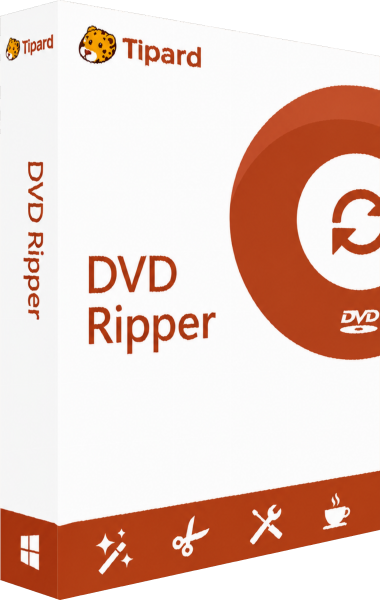
Tipard DVD Ripper
Convert DVD discs, ISO images and VIDEO_TS folders to video or audio, with title selection, subtitles and editing tools.
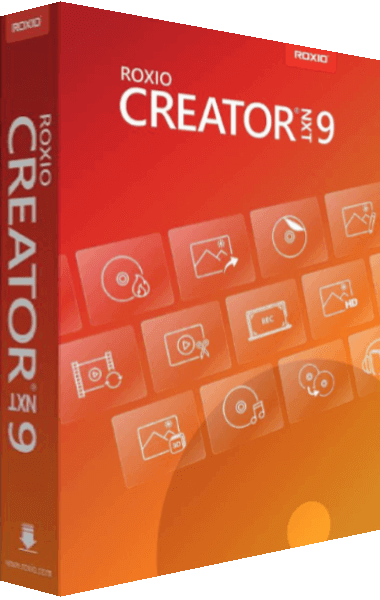
Roxio Creator NXT
Bring photos, video, audio, and disc projects together in a multimedia creation suite.