Product comparison
CamRio Watermark Expert vs Tipard Video Converter Ultimate
CamRio Watermark Expert provides dedicated watermark addition and removal for photos and videos. Tipard Video Converter Ultimate includes video watermark and removal tools within a broader converter. For video work, compare the overlay controls, selected removal regions and timing before choosing the surrounding workflow.
Compared products
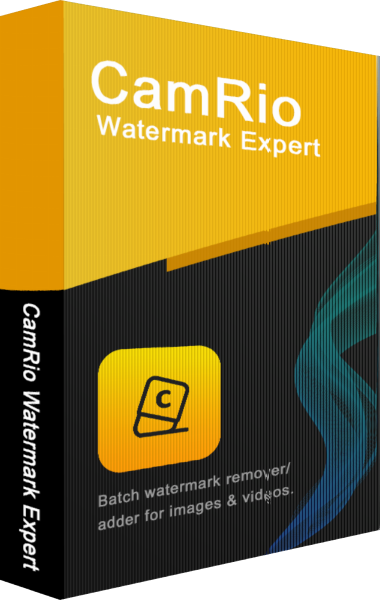
CamRio Watermark Expert
Add text or logo watermarks and remove selected marks from photos and videos, individually or in batches.
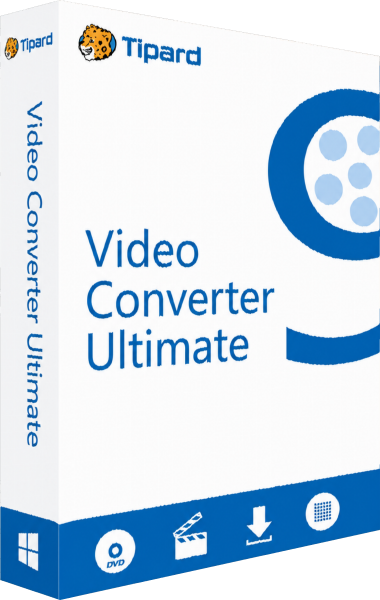
Tipard Video Converter Ultimate
Convert video, audio and DVDs, edit clips, compress files, and create themed videos or split-screen collages.
Compare watermark workflows
| Task | CamRio Watermark Expert | Tipard Video Converter Ultimate |
|---|---|---|
| Main scope | Watermark addition and removal for photographs and videos | Video watermark tools alongside conversion, compression and clip editing |
| Adding a video mark | Add text or an image and adjust placement, size, rotation and opacity | Add text or an image watermark with appearance and placement controls |
| Removal area | Select the area in Video Watermark Remover | Add a watermark-removal area and adjust its size and location |
| Time intervals | Separate Segment Trim entries can use their own positions and time settings | Set the duration for the selected watermark-removal area |
| Collections | Batch tools for adding or removing watermarks in photos and videos | Check the selected watermark tool separately from converter batch controls |
| Further preparation | Export processed media and inspect it through Open Path | Additional tools for trimming, cropping, conversion and compression |
Which workflow fits?
Choose CamRio for dedicated watermark operations
CamRio Watermark Expert combines text and logo addition with selected-area removal for photos and videos. Prepare the overlay or removal region, test a small sample and inspect the saved result. For collections, check files with different dimensions before applying a shared setup.
Choose Tipard when watermark work accompanies video preparation
Tipard Video Converter Ultimate is relevant when a video also needs format conversion, compression or clip edits. Open the appropriate watermark tool, set its area or overlay and time range, then review an exported sample. Verify each selected operation instead of assuming converter batch options apply to every toolbox task.
Check time ranges and area placement in the exported video
Both documented video-removal workflows use selected regions and timing controls. CamRio also describes separate segments for marks appearing at different positions. A collection of timed regions does not establish automatic tracking of a moving logo; inspect the full affected sequence.
Adding a new overlay and processing pixels beneath an existing mark are different operations. Compare each on the same source material. Removal can change background texture, so a successful export does not establish exact recovery of details previously hidden by the mark.
Check a sample export
- Keep the original video and choose a short section containing the mark and any position changes.
- For addition, test the logo or text against light and dark scenes and check that captions remain visible.
- For removal, set each region and interval, then play across its start and end boundaries.
- Export a separate copy and inspect background texture, motion, synchronization and the full frame.
Save processed copies separately from the source collection. Review both the full image or frame and the affected region. These comparisons describe documented workflows and do not report measured removal quality or speed rankings.