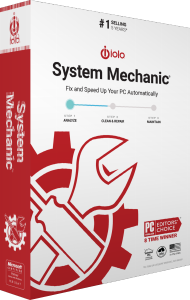


Maintain Windows with iolo System Mechanic
iolo System Mechanic is a PC cleanup and maintenance application for Windows. The standard edition combines unnecessary-file cleanup, startup management and performance controls with automated maintenance.
Use its findings to review what is taking up space or running in the background. Choose changes around the applications you need and check their effect on your normal work rather than assuming every recommendation will improve performance.
Review DeepClean and browsing-data cleanup
DeepClean and the cleanup tools address unnecessary Windows files and local browsing traces. Review the selected categories before removing data, especially when you want to retain browser sessions or application caches.
Clearing a browser's local history or cookies does not delete information already held by websites. Removing temporary files is also a different task from deleting your personal documents or preparing an entire drive for handover.
Choose which applications run at startup
Startup controls help identify unwanted programs that launch with Windows. System Mechanic also identifies potentially unwanted programs for review and removal.
Check what each item does before changing it. Keep the background tools your workflow depends on, such as synchronization clients or device utilities, and test a normal sign-in after making adjustments.
Configure Smart ActiveCare and review its history
Smart ActiveCare automates maintenance while the PC is idle. Review the enabled tasks before relying on unattended changes, and adjust the routine to match how you use the computer.
The History view in General Settings records recent maintenance activity, with Details available for individual events. Use it to see what ran and investigate a change rather than relying only on an overall status message.
Use resource and connection tuning controls deliberately
LiveBoost provides CPU, memory and storage-resource controls. NetBooster adjusts Windows Internet-connection settings.
Compare results using the same applications and tasks before and after a change. Connection tuning does not increase the bandwidth supplied by your Internet provider, and resource controls do not guarantee a fixed improvement in gaming, editing or everyday responsiveness.
Activate the standard edition and check product details
Complete installation with your email address and System Mechanic activation key. The key icon opens Product Information, where you can review the activated product and subscription details.
Confirm the edition before following instructions for a particular component. A familiar application name does not mean that every tool in the wider System Mechanic family is enabled by your license.
Compare System Mechanic with Professional and Ultimate Defense
The standard edition focuses on maintenance. System Mechanic Professional adds antivirus protection, on-demand malware scanning and data tools. System Mechanic Ultimate Defense also includes dedicated Privacy Guardian controls and ByePass+ password management.
For other maintenance applications, browse our PC optimization software catalog. Keep a separate file backup workflow so that cleanup and tuning are supported by recoverable copies of your important data.
Compare System Mechanic and other maintenance tools
- Ashampoo WinOptimizer Pro 29 vs iolo System Mechanic
- iolo System Mechanic vs IObit Advanced SystemCare Pro
- iolo System Mechanic vs AVG TuneUp
- iolo System Mechanic vs CCleaner Professional
- iolo System Mechanic vs Auslogics BoostSpeed
- iolo System Mechanic vs Nero TuneItUp PRO 2026
- iolo System Mechanic vs Professional vs Ultimate Defense