Practical guide
How to Clone a Hard Drive to an SSD
Disk cloning copies a disk to another disk for replacement or migration. The destination may be overwritten. Make a separate backup before starting, and identify both disks by model and capacity.
Cloning or imaging?
| Method | Result | Best suited to |
|---|---|---|
| Clone | A second disk containing the copied layout and data | Replacing a working drive |
| Disk image | A backup file that must be restored | Keeping recovery points and recovering later |
| File copy | Selected files in another location | Moving documents, without migrating a bootable system |
Prepare the migration
- Check the source disk for errors. If the drive is failing or disconnecting, prioritize recovering valuable data rather than repeatedly attempting a normal clone.
- Confirm that the tool supports the source layout, encryption and destination connection. A smaller target needs enough usable space and support for resizing.
- Save encryption recovery keys and create bootable recovery media.
- Back up data already on the destination disk. Cloning is not a merge operation.
Clone and verify
- Connect the replacement disk and launch the cloning tool.
- Select the original disk as the source and the replacement as the destination. Recheck model names before confirming.
- For a system migration, include the partitions needed to boot, not just the visible Windows volume.
- Review partition sizing and run the clone without interrupting power.
- Shut down and follow the hardware instructions to replace or disconnect the original disk.
- Boot from the replacement by itself. Check applications, important files and encryption access before reusing the old drive.
Choose a tool by its documented workflow
The O&O DiskImage 23 catalog page links to an imaging product whose documentation also covers cloning. Compare the exact edition and migration procedure with your disk layout. A clone is not a substitute for a backup with several recovery dates.
Frequently asked questions
Can I clone to a smaller SSD?
Only when the data and required partitions fit and the cloning tool can resize the supported layout. Compare usable space and documented restrictions before starting.
Can I erase the old disk immediately?
Keep it intact until the replacement boots independently, your files are verified and you have another working backup.
Related products
Compare tools for replacing a drive or migrating a system to an SSD.
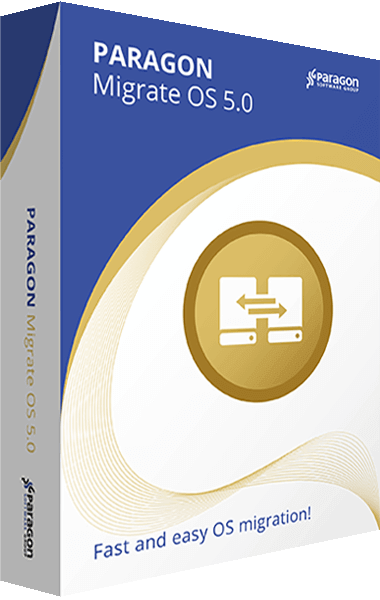
Paragon Migrate OS
Migrate Windows to another HDD or SSD, including smaller drives with selected data excluded.
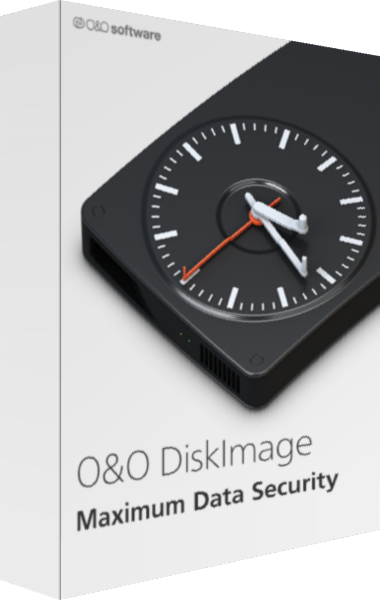
O&O DiskImage
Create system images and file backups with scheduled chains and recovery tools.
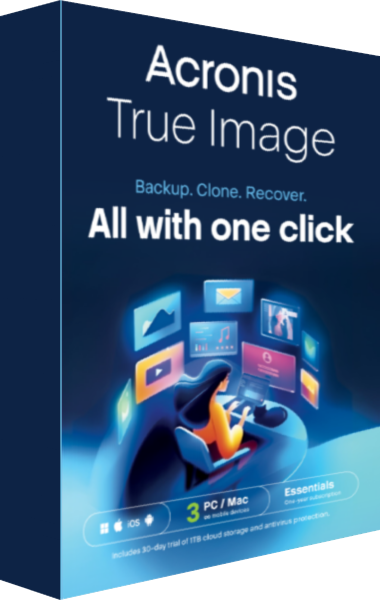
Acronis True Image
Back up files, create system images and prepare recovery or drive migration workflows with Acronis True Image.
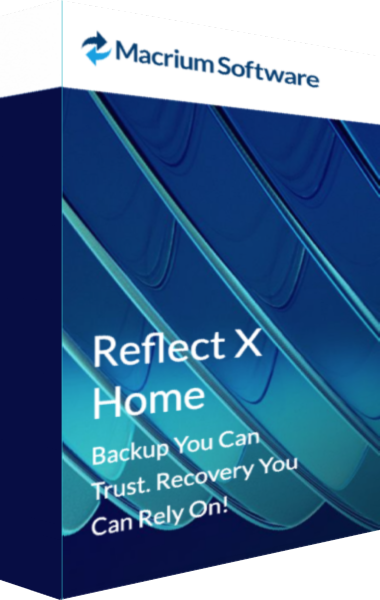
Macrium Reflect X Home
Create disk images and file backups with Reflect X Home and prepare rescue-media recovery.