Product comparison
Tipard Blu-ray Converter vs Nero Recode 2026
Both applications convert Blu-ray, DVD and local media into playback files. Tipard documents MKV Lossless remuxing and Blu-ray ISO output alongside encoding profiles. Nero Recode 2026 emphasizes supported unprotected disc imports, device profiles and conversion jobs. Choose the required result before comparing settings.
Compare disc conversion workflows
| Task | Tipard Blu-ray Converter | Nero Recode 2026 |
|---|---|---|
| Disc sources | Blu-ray discs, ISO images and BDMV folders, plus DVD sources | Supported unprotected Blu-ray, DVD and AVCHD sources |
| Movie export | MKV Lossless for remuxing or an encoding profile such as MP4 with H.264 or H.265 | Video output profiles for formats and playback devices; inspect the chosen encoding |
| Disc structure | Blu-ray ISO output is separate from a movie export | Review the chosen conversion workflow; a movie file is separate from an interactive disc structure |
| Preparation | Trim, split, merge, crop, rotate and adjust the picture | Trim, crop and rotate supported video |
| Multiple titles | Use shared or individual output profiles for selected titles | Prepare a sequence of conversion jobs |
| Other media | Dedicated Converter workspace for supported local audio and video | Local audio and video conversion and audio CD ripping |
Which workflow fits?
Consider Blu-ray Converter for disc and local-file exports
Tipard Blu-ray Converter suits selecting Blu-ray or DVD titles, audio and subtitles before export. MKV Lossless remuxes the source video without re-encoding. Use an encoding profile when applying picture edits, or Blu-ray ISO output when retaining the disc structure is the goal.
Consider Recode for device profiles and mixed conversion jobs
Nero Recode 2026 fits a collection of supported unprotected discs, video files and music. Choose a destination profile and inspect the resulting codec rather than assuming that a familiar extension will suit every player. This comparison covers the 2026 catalog edition.
Nero cannot copy protected commercial discs. Use a supported unprotected source for a direct comparison. Tipard's MKV Lossless retains the source video stream, while an encoding profile changes it; check the selected operation in each application instead of treating all MKV outputs as equivalent.
Check the selected controls
- Select a supported unprotected source and preview all relevant titles.
- Decide whether you need remuxing, re-encoding or a disc-structure copy.
- Choose the intended audio and subtitle tracks and test the output on the destination player.
- After a representative sample succeeds, prepare the remaining titles and inspect the completed files.
Keep the source disc or image and save exports separately. Preview dialogue, subtitle timing, motion and dark scenes. A remux preserves the existing video stream rather than improving it, and a smaller re-encoded copy can discard detail. An MKV movie does not retain an interactive disc menu.
Compared products
Review the selected catalog products and check disc input, remuxing or encoding profiles, track selection and the later stages of your workflow.

Tipard Blu-ray Converter
Convert Blu-ray, DVD and local media to video or audio, with MKV Lossless, track selection and editing tools.
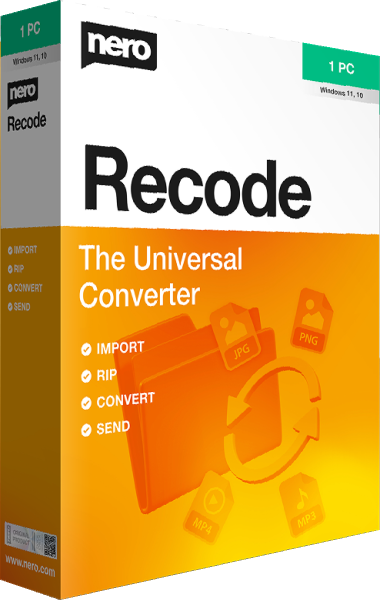
Nero Recode
Prepare conversion jobs for supported media and unprotected discs using device profiles and editing tools.