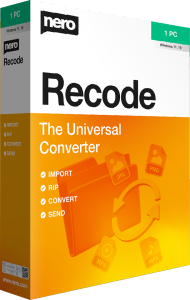

Convert video and audio with Nero Recode 2026
Nero Recode 2026 prepares video and music for a different playback device or a more manageable file size. Import supported media, choose an output profile, and create converted copies while keeping your originals.
Use it when a recording plays on your PC but needs a different format for a television, phone, or tablet. Begin with the destination you want to use, then choose settings around that playback goal.
Import files and supported disc content
Add video or audio files to a conversion job. Recode also provides importing from DVD, Blu-ray, and AVCHD sources that are not copy-protected, along with audio CD ripping.
For a personal disc collection, review the selected titles before conversion and keep the source available until you have checked the exported files. Disc importing does not imply the removal of copy protection.
Choose a format for the intended player
Device profiles help select conversion settings. Published output options include MP4 with H.264 video and audio formats such as MP3, AAC, WAV, and FLAC.
A filename extension alone does not describe everything a player needs. The video and audio encoding inside the file also matters. Convert a short sample and try it on the actual destination before processing a full collection.
Balance file size and visible quality
A smaller export can be useful for a portable viewing copy. Choose the resolution and encoding settings with the intended screen and storage space in mind.
Compression can reduce detail, especially after repeated conversion. Inspect movement, fine textures, and dark scenes in the result. Keep a separate original so you can create a different export later without starting from an already compressed copy.
Prepare several conversion jobs together
Build job lists for a sequence of conversions instead of setting up each file from scratch. This is useful when preparing several recordings for the same destination.
Test the chosen settings first, use clear output names, and keep exported copies in a separate folder. After the jobs finish, check that the expected files are present and play correctly before reorganizing the source collection.
Correct orientation and trim unwanted footage
Recode includes rotation, cropping, and trimming tools for preparing a clip during conversion. Correct a sideways phone recording, adjust the frame, or remove an unwanted beginning or ending.
Preview the changes before exporting. Cropping removes part of the image, so check that faces, captions, and other useful details remain inside the frame.
Keep conversion, library organization, and backup separate
Recode prepares new media copies. For browsing albums, playlists, and a home media collection, compare Nero MediaHome 2026.
Preserve important originals independently of your export folder. Nero BackItUp 2026 focuses on backup and recovery. A converted viewing copy is useful for playback, but it may not retain the quality or contents of the source.