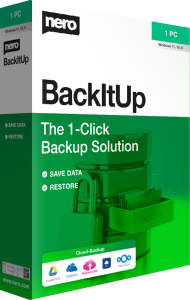



Back up important files with Nero BackItUp 2026
Nero BackItUp 2026 helps create and restore backup copies of documents, photos, and other important files. Schedule recurring jobs, choose a storage destination, and use encryption and compression where appropriate.
Start by identifying what you need to preserve and how often it changes. A collection of archived photographs may need a different schedule from working documents edited throughout the day.
Schedule backups around your work
Run backups daily, weekly, monthly, or at another chosen time. Continuous backup provides an option for tracking file updates more frequently.
Choose a schedule when the computer and destination are available. Check completed jobs regularly: setting up automation is only the first step, and a disconnected drive or unavailable account can interrupt it.
Choose local, external, or network storage
Backup destinations include an additional hard drive, an external USB drive, a NAS, and optical media. Choose storage around the amount of data and how you expect to retrieve it.
A copy stored separately from the original helps when the source becomes unavailable. Keep track of the destination and available space, and make sure you can access the backup when you need to restore it.
Use OneDrive or Google Drive for cloud backups
Nero BackItUp supports backup and restore through your OneDrive or Google Drive storage. This offers another destination when you want a copy outside the local computer.
Check the connected account, available capacity, and completion status. A cloud destination still depends on account access and a successful transfer; it should not be treated as proof that every selected file has already been saved.
Keep earlier versions of changing files
Local version management retains earlier file versions so you can return to a previous copy rather than only the most recent state. This can help after an unwanted edit or when a working file becomes damaged.
Check that the required version is present before relying on it. A file can only be restored from data that was backed up and remains available; backup software cannot guarantee recovery of every missing file.
Encrypt and compress your backups
AES 256-bit encryption and password protection help protect backup contents. Compression can reduce storage use, with the amount saved depending on the files.
Keep the password in a secure place that you can access during recovery. Preserve the backup and the information needed to open it, and test access before depending on an encrypted archive.
Test restoration before you need it
Restore a representative file to a separate folder and open it to check the contents. Keep the current working copy until you have confirmed that the restored version is the one you want.
Repeat this check when you change a destination or important backup settings. A successful restore is a practical way to confirm that the workflow covers the files you intended to protect.
Review an existing backup setup
If you previously used Nero BackItUp 2021, review your jobs and destinations before moving to another edition. Keep existing backup copies until you have verified the new workflow.
Confirm the selected edition and its license details. This overview describes the published backup functions for 2026 without assuming that every function is a new addition compared with earlier releases.