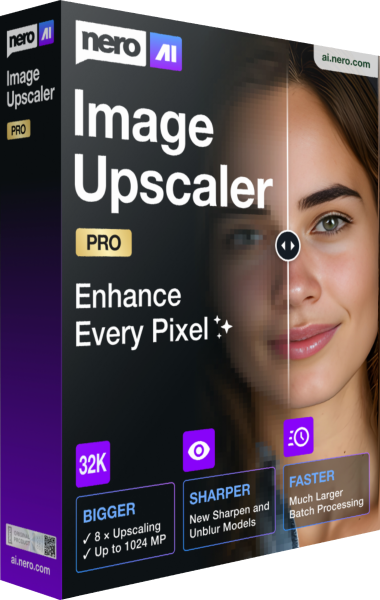




Enlarge photographs and illustrations with AI
Nero AI Image Upscaler 2027 is a desktop application for enlarging still images and enhancing their appearance. Prepare photographs, scanned pictures and illustrations for layouts, displays or print projects while keeping the original files for comparison.
Choose the output size around the intended use. A picture for a small page illustration may need less enlargement than a poster, and additional pixels alone do not establish that an image contains more authentic detail.
What changes in the 2027 generation
The 2027 release adds 8x enlargement, output support up to 1024 megapixels, and queues of up to 100 images. A suitable 4K source can reach approximately 32K dimensions; the result depends on the source dimensions, settings and export format limits.
It also introduces Sharpen for soft detail and Unblur for blurred images. Available controls can differ between platforms and builds, so select the installed version that supports the workflow you intend to use.
Match the model to the picture
Photo, Standard, Iris and Anime models address different subjects, from everyday photographs to fine textures and illustrated artwork. Model strength controls how strongly the enhancement affects the result.
Compare a representative crop before processing a whole collection. Fine patterns, hair and lettering deserve particular attention because aggressive enhancement can introduce outlines or textures that were absent from the source.
Review portraits and recovered detail
Face Recovery can reconstruct facial detail, with availability depending on the edition. Treat the result as an enhanced interpretation rather than proof of the original appearance.
Check eyes, teeth, skin texture and the outline of the face against the source. For family archives, retain the untouched scan alongside the enhanced copy so that later viewers can distinguish the original record from the processed version.
Process a collection consistently
The image queue and Apply to All controls help reuse settings across unprocessed pictures. Before-and-after views let you compare the original and processed result.
Group similar pictures together and test one image from each group first. A setting that works well on a landscape may be unsuitable for a portrait or a drawing. Review individual results before treating a complete batch as finished.
Choose processing and export options
Local and cloud processing offer different workflows. Cloud acceleration requires Pro and consumes Nero Credits. Export options include JPG, PNG, BMP, WEBP and TIFF, with availability depending on the installed build.
Decide whether images may be uploaded before selecting cloud processing. Save outputs to a separate folder, use names that identify the enhanced copies and check the exported dimensions in the application where the files will be used.
Keep enlargement separate from your image archive
An enlarged picture is a derivative of the source. Preserve original files and maintain an independent backup before reorganizing or replacing a collection. This also makes it easier to try another enhancement model later.
Explore the Nero software catalog for related media tools. Compare products by their role in your workflow, such as organizing, editing or backing up files, rather than assuming image enlargement performs all of those tasks.