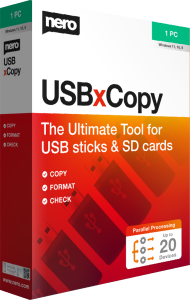



Prepare multiple USB copies with Nero USBxCopy 2026
Nero USBxCopy 2026 copies a selected set of data to several connected USB drives in one workflow. Use it to prepare matching collections of documents, photographs, or other files for distribution.
For a workshop or presentation, gather the final material in a clearly named source folder first. Check that it contains the version you want recipients to receive before starting a batch of copies.
Review connected drives before copying
The device overview detects connected drives and displays their format, size, and status. Review the destinations before starting the operation.
Keep unrelated removable drives out of the batch. When preparing several devices, identify each destination and make sure existing files on it are no longer needed before choosing a formatting operation.
Choose FAT32, NTFS, or exFAT formatting
USBxCopy offers FAT32, NTFS, and exFAT formatting for the destination devices. Choose the format around how the recipients will use the copies.
For example, a drive intended for a television or another dedicated player should use a file system that the destination recognizes. Check the intended device and sample files before preparing the entire batch. Formatting replaces the existing file system and can erase stored data.
Copy the same source to several drives
Select the source path and start copying to the chosen destinations simultaneously. This avoids repeating the same manual copy setup for each USB drive.
Keep the source collection unchanged until the batch finishes. Copy time depends on the amount of data and the connected devices, so parallel copying does not imply a fixed completion time or an unlimited number of destinations.
Check completion and verification results
Checksum verification checks the copied data, while color-coded status indicators show progress for each device. Review the outcome before handing out the drives.
A verification result describes that copy operation. It does not guarantee that a USB drive will remain reliable indefinitely. Open representative files on a completed drive and, where relevant, try them on the intended playback device.
Track completed copies through a batch
A built-in counter helps track completed copies, and automatic ejection is available for finished devices. These controls help organize repeated batches of the same material.
Keep completed drives separate from those awaiting copying. Label the batch with a useful project name or date so recipients can distinguish it from an earlier collection.
Choose copying, disc burning, or backup for your task
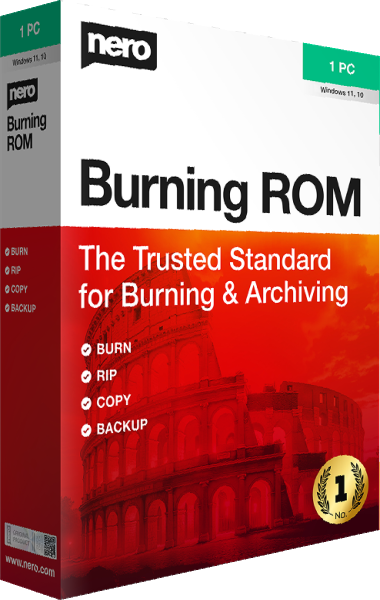
USBxCopy focuses on preparing USB copies. For optical-disc projects, compare Nero Burning ROM 2026.
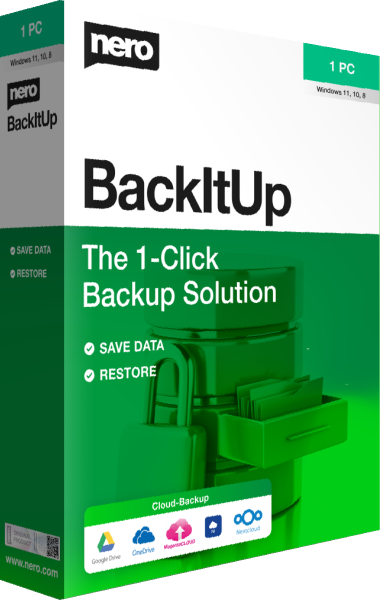
Distribution copies serve a different purpose from a maintained recovery archive. For scheduled backups, compare Nero BackItUp 2026, and keep important source files independently of the USB batch.