Product comparison
CamRio Video Converter vs EaseUS VideFlow
CamRio Video Converter focuses on supplied video and audio files, with compression, merging and GIF tools. EaseUS VideFlow combines conversion and compression with media playback, downloading and additional editing features. Compare the local-file task first, then decide whether the broader toolkit is useful.
Compared products
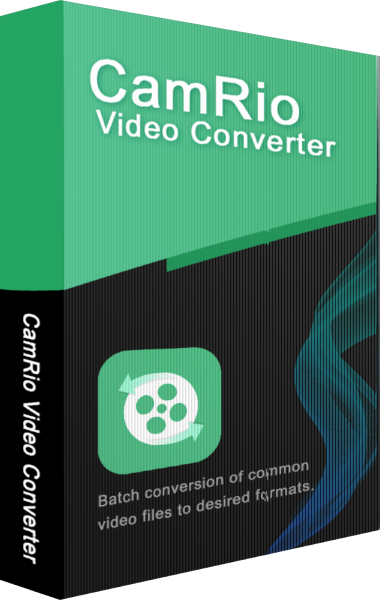
CamRio Video Converter
Convert video and audio, compress or merge videos, extract sound and create animated GIFs.
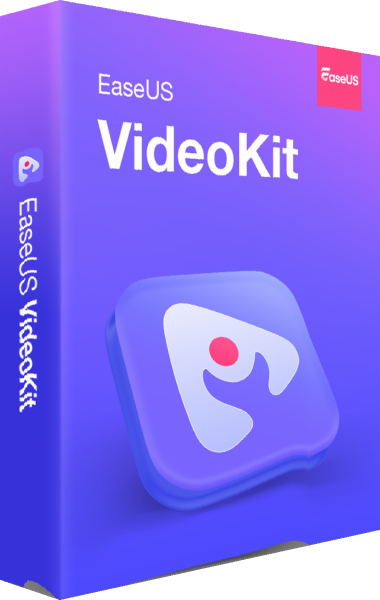
EaseUS VideFlow
Download, play, convert, edit, and compress supported video and audio with EaseUS VideFlow.
Compare conversion workflows
| Task | CamRio Video Converter | EaseUS VideFlow |
|---|---|---|
| Core conversion | Convert supplied videos in batches and convert audio files | Batch conversion of supported video and audio files |
| File-size reduction | Video compression with output choices for the intended use | Compression controls for output size and media parameters |
| Sound from video | Extract audio as a separate file | Prepare audio-only output from supported videos |
| Animated output | Create GIFs from video | Video-to-GIF tools for selected content |
| Clip preparation | Merge clips and select conversion output settings | Basic tools such as trimming, cropping, speed adjustment, effects and watermarks |
| Additional workflow | Work from media supplied to the converter | Playback and downloading, with edition-dependent subtitle and transcription tools |
Which workflow fits?
Choose CamRio for file conversion and focused media tasks
CamRio Video Converter provides video and audio conversion, compression, merging and GIF creation. Choose the operation, select an output format and save a short sample to a separate folder. Inspect the result before processing a collection.
Choose VideFlow when conversion is part of a broader media workflow
EaseUS VideFlow is relevant when conversion sits alongside playback, basic edits or subtitle tools. Confirm the available modules in the selected edition and test a local file before expanding the workflow. Keep a separate output when trying compression or a different format.
Check VideFlow modules and existing VideoKit entitlements
EaseUS now presents this media toolkit as VideFlow. The newer name does not establish that an existing VideoKit license includes every VideFlow module or feature. Check the product and edition actually installed.
Downloading, playback and transcription are additional stages, not evidence of better conversion. Compare local-file exports at matching settings and review any subtitle or transcript separately. A smaller output also needs a picture and sound check rather than an assumption of lossless compression.
Check a sample export
- Start with the same local source and compare conversion and compression as separate tasks.
- Match the intended resolution and audio settings, then check format compatibility in the target player.
- Inspect small text, motion and sound after compression, and proofread any generated subtitles or transcripts.
- Verify which modules are included before planning a repeated workflow, and retain the original media.
Keep source media separate from converted copies. Changes to encoding, resolution or compression can affect visible quality and sound. These workflow comparisons do not report measured speed or quality rankings.
Explore more
- CamRio Video Converter vs Tipard Video Converter Ultimate
- CamRio Video Converter vs Nero Recode 2026
- CamRio Video Converter vs Ashampoo Video Converter
- CamRio Video Converter vs Tipard HD Video Converter
- Video, DVD and Blu-ray guides and comparisons
- Video editing software
- Keep independent copies of source media