Product comparison
CamRio Video Converter vs Ashampoo Video Converter
Both programs convert video files for playback and sharing and offer batch processing and device profiles. CamRio also presents dedicated compression and GIF tasks. Ashampoo Video Converter includes picture-adjustment sliders with a live preview. Choose around the output destination and any corrections needed before export.
Compared products
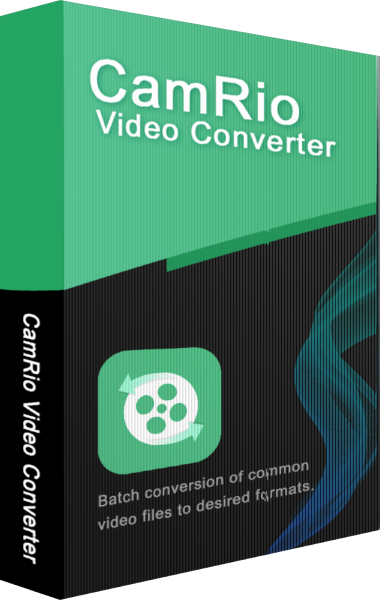
CamRio Video Converter
Convert video and audio, compress or merge videos, extract sound and create animated GIFs.
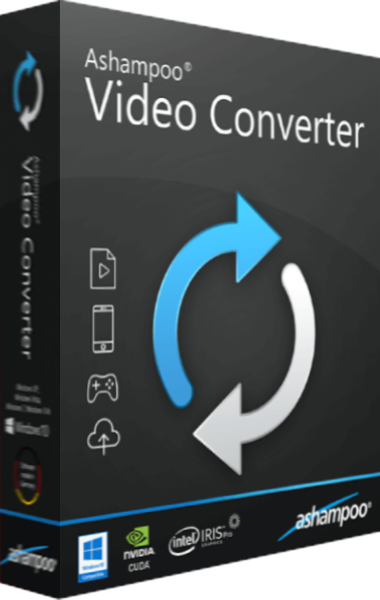
Ashampoo Video Converter
Convert video and audio files for playback and sharing.
Compare conversion workflows
| Task | CamRio Video Converter | Ashampoo Video Converter |
|---|---|---|
| Conversion setup | Add files and choose a format or device preset | Add videos and select an output format or target device |
| Collections | Batch video conversion | Batch processing of video collections |
| Audio output | Audio-file conversion and audio extraction from video | Export video sound to supported audio formats |
| Combining material | Video Merger combines several clips | Join multiple movies into one output |
| Picture preparation | Select output resolution and inspect the saved copy | Adjust brightness, contrast, gamma, sharpness and saturation with a live preview |
| Other task controls | Dedicated video compression and video-to-GIF tools | Device and publication profiles with picture adjustments; verify any additional task in the installed application |
Which workflow fits?
Choose CamRio for file conversion and focused media tasks
CamRio Video Converter provides video and audio conversion, compression, merging and GIF creation. Choose the operation, select an output format and save a short sample to a separate folder. Inspect the result before processing a collection.
Choose Ashampoo for device profiles and picture corrections
Ashampoo Video Converter is useful when a playback copy also needs picture adjustments. Select a format or device profile, compare corrections in the live preview and export a sample. Verify the result on the actual player or device before applying the setup to a collection.
Treat a profile as a starting point for compatibility checks
Device and publication profiles simplify configuration, but service requirements and accepted formats can change. Check a representative exported file in the current destination rather than assuming that a preset label establishes compatibility.
CamRio explicitly lists dedicated compression and GIF workflows. Ashampoo's conversion and picture-adjustment tools overlap with part of the task; verify any further operation before treating the two tool sets as interchangeable. Neither adjustments nor a higher output resolution recreate details absent from the source.
Check a sample export
- Choose a source with motion, fine detail and a section that could benefit from picture correction.
- Set comparable output dimensions and audio settings, then preview any appearance adjustments.
- For merged output, check the clip order and both picture and sound at each join.
- Test playback on the intended device or service, and keep the source alongside the checked export.
Keep source media separate from converted copies. Changes to encoding, resolution or compression can affect visible quality and sound. These workflow comparisons do not report measured speed or quality rankings.