



Back up complete partitions and Windows installations
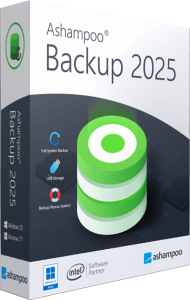
Ashampoo Backup 2025 creates backups of entire disk partitions, including those containing Windows and installed applications. It focuses on a straightforward workflow: choose the partitions, a backup destination and a time to run the plan.
A partition image gives you a recovery point for more than individual documents. Think about which partitions you would need to restore your working environment before starting the first backup.
Keep backups updated automatically
Incremental updates save changes after the initial backup. Scheduled runs keep the archive updated without requiring you to start each operation manually. Background processing can pause when the computer is busy and resume when the workload drops.
Choose a schedule that reflects how often your data changes. Review backup results regularly, especially after changing the destination or disconnecting an external drive. Work created since the last successful backup still needs protection.
Store archives on external drives or network storage
Supported destinations include local storage, external drives and locations on a local network. Select a destination that will be available when the backup is due to run.
Keep a recovery copy on a separate physical device. Saving an archive beside the original files on the same disk leaves both exposed to a disk failure. For irreplaceable documents and photos, maintain another independent copy as well.
Reduce archive size and check backup integrity
Backup 2025 combines archive compression with automatic integrity verification. Compression helps manage storage use, while verification checks the saved backup data.
These checks are useful alongside a practical recovery test. Restore a sample file to a separate location and open it before relying on the archive. Keep enough destination space for future updates and review the backup after major changes to the source data.
Prepare recovery before Windows stops starting
Recover files through the application or use its rescue system when Windows cannot start. The program can create a bootable USB flash drive or disc so recovery can begin outside the installed operating system.
Create and test the rescue medium in advance, then confirm that it can access your backup destination. Recovery depends on having a suitable, usable backup already available. Restoring an older archive cannot recover changes made after that archive was created.
Choose a backup workflow for your data
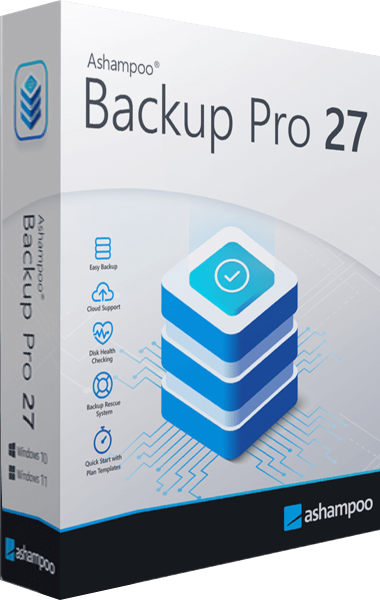
Backup 2025 centers on partition backups and recovery. If you also want separate file and folder plans or supported cloud destinations, explore Ashampoo Backup Pro and compare its workflow with your needs.
Our system backup guide explains what to consider when protecting a complete installation. For a wider overview of approaches, visit the backup software guide.
Browse the disk imaging and backup software category to explore other catalog editions and related comparisons.