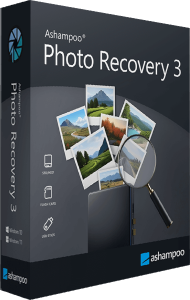





Recover deleted photos with Ashampoo Photo Recovery 3
Ashampoo Photo Recovery 3 searches for lost pictures on hard drives, USB sticks, and memory cards. Use it after accidental deletion or when a storage device has been formatted or its file system is damaged. Recovery depends on the data still available on the source; finding every missing picture is not guaranteed.
Choose the affected source, scan for relevant image types, and review the pictures found before keeping them. This gives you a practical way to work through a missing camera folder or a collection of family photos without restoring every result indiscriminately.
Search memory cards and formatted drives
The program goes beyond ordinary deleted-file searches by looking for images on formatted or corrupted storage. A camera card or USB drive can be a useful starting point when photos no longer appear in their usual folders.
Stop adding files to the affected device after discovering a loss. New data can overwrite the contents you want to recover. A drive must remain accessible to the computer for a software scan; physical damage or overwritten data can prevent recovery.
Find common image formats and camera RAW files
Search for JPG, PNG, BMP, GIF, and RAW images, alongside formats such as WebP and JPEG 2000. Version 3 improves recognition of newer RAW files used by Canon and Nikon cameras and DNG-based workflows, as well as handling of EXIF and XMP metadata.
Select the format groups that match your missing pictures. A search for everyday photos and a search for camera originals have different priorities, so narrowing the settings can help keep the resulting collection relevant.
Filter results and review photo previews
Thumbnail previews help identify recovered pictures. File type, file size, and image dimensions provide ways to narrow a search, especially when a large drive contains many small graphics alongside full-size photographs.
Inspect the results and keep the images you need. Save recovered files to a separate destination, then open important pictures to check their contents. A recognizable preview is useful for selection, but you should still review the saved image before treating the recovery as complete.
Extract pictures from PDF and Office documents
Photo Recovery can also search a file for embedded images. A PDF or Office document may contain a picture whose original file is no longer available, making document extraction a useful alternative source for that image.
The extracted picture reflects what was stored in the document. Its resolution and detail may differ from the original photograph, so check whether it is suitable for printing, editing, or sharing.
Photo Recovery 3 vs Photo Recovery 2
Compared with Photo Recovery 2, version 3 introduces a redesigned interface and faster JPG and PNG processing. It also updates RAW detection, metadata handling, and internal components for improved stability.
These changes matter most when working with newer camera files or reviewing larger image collections. Actual scan time depends on the source and search settings, and a newer version cannot guarantee that overwritten pictures will be recovered.
Organize recovered photos and protect your collection
After checking the recovered files, use Ashampoo Photo Commander 27 to organize and work with your photo collection. Keep the recovered originals before making further edits.
For future protection, consider a backup workflow with Ashampoo Backup Pro 26. Photo recovery helps after a loss, while a separate backup gives you another copy to restore when the original is unavailable.
Photo Recovery 3 purchase options
Review the license details in the standard purchase section before continuing to checkout.
View Ashampoo Photo Recovery 3 purchase options.
Compare recovery workflows
Compare search controls and result review in our iolo Search and Recover vs Ashampoo Photo Recovery 3 comparison.