Product comparison
iolo Search and Recover vs Ashampoo Photo Recovery 3
This comparison focuses on missing photographs. Search and Recover searches for multiple kinds of deleted files, including pictures, documents and other media. Photo Recovery 3 specializes in images, with RAW searches, thumbnail review and extraction of pictures stored inside documents. Choose around the kind of content you need.
Compare recovery workflows
| Task | iolo Search and Recover | Ashampoo Photo Recovery 3 |
|---|---|---|
| Recovery focus | Multiple file categories, including photos, documents and media | Specialized image and photo searches |
| Source selection | Folders, drives and removable media | A storage device or a document file containing images |
| Search approach | File-type selection, SmartScan and sector-level StrongScan | Photo scan presets and selectable image-format groups |
| Camera originals | Confirm support for the specific camera file format | RAW image detection; check the exact camera format in the installed build |
| Review controls | Select relevant results and check recovered copies | Thumbnail results, file-size controls and image-dimension settings |
| Alternative image source | Do not infer embedded-image extraction from general file recovery | Extract images stored in PDF and Office documents |
Which workflow fits?
Consider Search and Recover for a mixed collection
iolo Search and Recover is relevant when the missing folder contained photographs alongside documents, music or videos. Select the file categories and location you need, then review what remains available on the source.
Consider Photo Recovery for image-specific searches
Ashampoo Photo Recovery 3 focuses on photographs, including RAW files. Scan presets, format groups, minimum image dimensions and size controls help distinguish larger pictures from small graphics. Thumbnail results help select the images to keep.
Check documents as a separate source for pictures
Photo Recovery can also extract images embedded in PDF and Office documents. This provides another possible copy when the original image file is missing. The embedded picture may have different resolution or detail, so compare it with what you need for editing, printing or sharing.
Recovery checks and edition scope
The selected Ashampoo entry is Photo Recovery 3. RAW support depends on the actual format, and a thumbnail does not prove that the complete image is intact. Image extraction retrieves what the document contains rather than recreating the original camera file.
- Decide whether you need a mixed-file search, a photo-only search or extraction from an existing document.
- Preserve the source and choose another drive for recovered images before starting the scan.
- Select the relevant photo formats and inspect thumbnails; confirm support for specific camera RAW files.
- Open saved pictures at useful magnification and check dimensions and content, especially for extracted document images.
Recovery depends on surviving, readable data. These are documented workflow differences; we have not tested recovery rates or scan speeds on identical sources. Software cannot recreate overwritten contents or repair physical hardware damage.
Compared products
Review the selected catalog products for the recovery task described here.
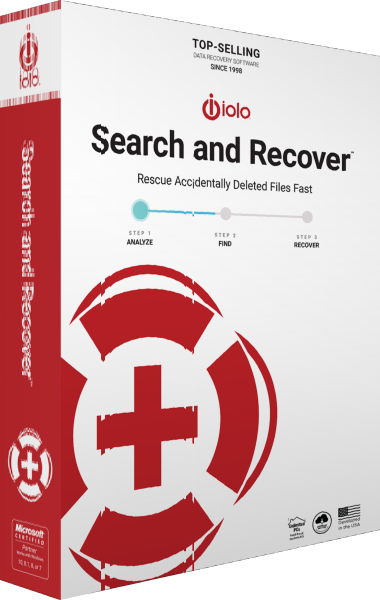
iolo Search and Recover
Search drives and removable media for deleted files using location controls, SmartScan and sector-level StrongScan.
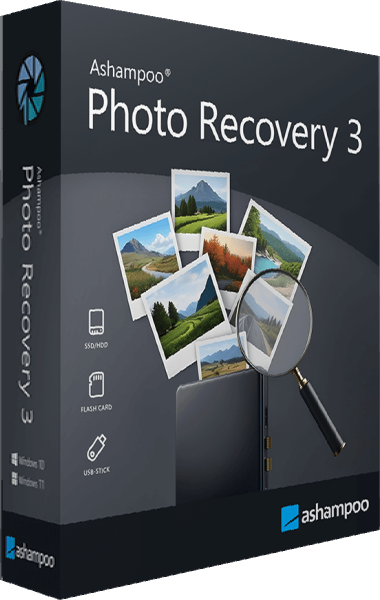
Ashampoo Photo Recovery
Search for deleted photos on hard drives, USB sticks, and memory cards.