Product comparison
iolo Search and Recover vs O&O DiskRecovery 14
Both products search for surviving file data after a loss. Search and Recover provides location searches, SmartScan and sector-level StrongScan. DiskRecovery 14 combines complementary search methods with file-type controls and custom signatures. Choose by the source and search settings you need to investigate.
Compare recovery workflows
| Task | iolo Search and Recover | O&O DiskRecovery 14 |
|---|---|---|
| Source selection | Search folders, drives and removable media | Select partitions, whole devices and connected removable storage |
| Search methods | SmartScan and sector-level StrongScan | UnErase, FormatRecovery and DiskRecovery methods |
| Additional scan controls | Narrow location and file types for the intended search | DeepScan, SmartScan and RawScan settings, depending on the source |
| Specialized formats | Review the file types available in the installed product | File-type selection and user-defined file signatures |
| Inspection | Review found items and verify recovered copies | Previews for supported picture and text formats |
| Recovery destination | Save selected copies to a different drive | Save selected files outside the affected source |
Which workflow fits?
Consider Search and Recover around its location controls
iolo Search and Recover supports searches focused on selected locations and file types. StrongScan provides a sector-level search when investigating surviving deleted contents. The choice should follow what was lost and where it was stored.
Consider DiskRecovery for complementary methods and signatures
O&O DiskRecovery 14 combines UnErase, FormatRecovery and DiskRecovery search processes. It also offers user-defined signatures for specialized file types and previews of supported results. Custom signatures require knowledge of the file format and do not guarantee reconstruction.
Both products use a name such as SmartScan, but matching labels do not establish matching algorithms or settings. Review each application's own controls. In DiskRecovery, the available options depend on the selected source, so enabling every option is not a universal starting point.
Recovery checks and edition scope
This comparison selects the DiskRecovery 14 catalog entry. Confirm the installed build and license scope, especially for business or client recovery work; Admin and Tech permissions should not be assumed to accompany every edition. Shared scan names are not evidence of equivalent behavior.
- Confirm whether the missing data belongs to a folder, partition or whole device, and preserve the source.
- Review the methods and file types available for that source before starting the search.
- Inspect supported previews; use custom signatures only when you understand the format being sought.
- Save a sample to another drive and check file contents in their normal applications before wider recovery.
Recovery depends on surviving, readable data. These are documented workflow differences; we have not tested recovery rates or scan speeds on identical sources. Software cannot recreate overwritten contents or repair physical hardware damage.
Compared products
Review the selected catalog products for the recovery task described here.
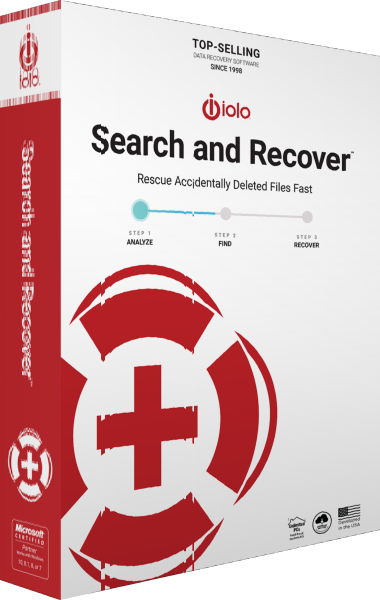
iolo Search and Recover
Search drives and removable media for deleted files using location controls, SmartScan and sector-level StrongScan.
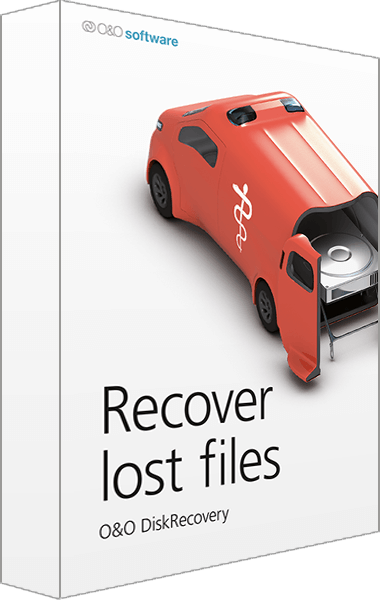
O&O DiskRecovery
Search for deleted files and review recoverable data before saving selected copies.
Explore more
- iolo Search and Recover vs Auslogics File Recovery
- iolo Search and Recover vs EaseUS Data Recovery Wizard 20
- iolo Search and Recover vs Ashampoo Undeleter
- iolo Search and Recover vs Ashampoo Photo Recovery 3
- O&O DiskRecovery 14 vs Auslogics File Recovery
- O&O DiskRecovery 14 vs EaseUS Data Recovery Wizard 20
- Explore data recovery software
- Prepare independent file backups