Product comparison
iolo Search and Recover vs EaseUS Data Recovery Wizard 20
Both applications help investigate missing Windows files. Search and Recover emphasizes location and file-type searches with SmartScan and StrongScan. EaseUS Data Recovery Wizard 20 provides deep-scan and lost-partition results with filters and supported previews. Compare the result-review workflow as well as the scan itself.
Compare recovery workflows
| Task | iolo Search and Recover | EaseUS Data Recovery Wizard 20 |
|---|---|---|
| Main role | Search accessible storage for deleted documents and media | Search Windows storage for deleted or lost files |
| Search controls | Location and custom searches with file-type selection | Source selection with deep-scan and lost-partition results |
| Scan approach | SmartScan reduces irrelevant items; StrongScan searches sectors | Inspect available results while scanning continues |
| Finding relevant items | Narrow the location and file types being searched | Search and filter results by available name, type, size and date details |
| Content inspection | Check found items and open recovered copies | Supported-file previews before selected recovery |
| Repair scope | Do not assume a damaged-file repair module from the recovery description | Selected photo and video repair support depends on build, format and edition |
Which workflow fits?
Consider Search and Recover for a focused source search
iolo Search and Recover lets you select locations and file types before investigating deleted data. SmartScan and StrongScan cover result relevance and sector-level searching respectively. Check the chosen scope before deciding that an item cannot be found.
Consider EaseUS for filtering and previewing scan results
EaseUS Data Recovery Wizard 20 allows result inspection during scanning, filtering and supported previews. This can help identify documents or media when a large search returns many candidates or original folder information is missing.
The Windows version 20 listing is the edition selected here. Do not assign it every feature of a newer release or the separate Mac application. Selected-format photo and video repair is an additional capability with its own limits; it cannot be assumed to recreate overwritten contents.
Recovery checks and edition scope
The EaseUS card is pinned to the Windows version 20 catalog entry. Verify edition limits and installed-build functions separately. Search results, previews and repair availability provide information for selection, rather than proof that every recovered file will be intact.
- Confirm the Windows source and prepare another drive for recovered output before scanning.
- Check scan scope and progress; broaden search details if the expected file name is unavailable.
- Preview supported files and check repair availability for the actual build, format and edition.
- Open recovered samples on the destination drive, including larger files and critical documents or media.
Recovery depends on surviving, readable data. These are documented workflow differences; we have not tested recovery rates or scan speeds on identical sources. Software cannot recreate overwritten contents or repair physical hardware damage.
Compared products
Review the selected catalog products for the recovery task described here.
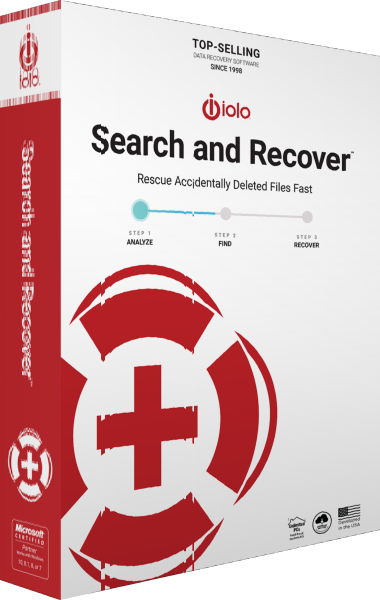
iolo Search and Recover
Search drives and removable media for deleted files using location controls, SmartScan and sector-level StrongScan.
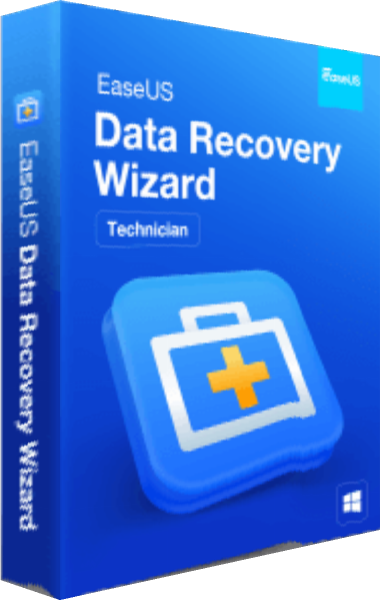
EaseUS Data Recovery Wizard
Search for lost Windows files, preview results, and recover selected data.
Explore more
- iolo Search and Recover vs Auslogics File Recovery
- iolo Search and Recover vs O&O DiskRecovery 14
- iolo Search and Recover vs Ashampoo Undeleter
- iolo Search and Recover vs Ashampoo Photo Recovery 3
- O&O DiskRecovery 14 vs EaseUS Data Recovery Wizard 20
- Explore data recovery software
- Prepare independent file backups