Product comparison
iolo Search and Recover vs Auslogics File Recovery
Both applications search storage for deleted files. Search and Recover offers location and file-type selection with SmartScan and StrongScan. Auslogics adds detailed result filters, supported previews and disk-image handling. Compare how you will locate and inspect the files you need before saving copies.
Compare recovery workflows
| Task | iolo Search and Recover | Auslogics File Recovery |
|---|---|---|
| Source selection | Folders, drives and removable media through location and custom searches | Drives and removable storage, including lost-partition file searches |
| Search approach | SmartScan reduces irrelevant items; StrongScan searches at sector level | Deleted-file searches and searches for files from lost or quick-formatted partitions |
| Narrowing the search | Select the location and file types to search | Filter by name, type, date and size |
| Result inspection | Review the found items and verify saved copies | Supported-file previews and result details before selected recovery |
| Disk-image workflow | Confirm image-input support in the installed release before planning this workflow | Built-in image creation and opening for file recovery |
| Saving files | Save recovered data to a different drive | Select another destination and check edition recovery limits |
Which workflow fits?
Consider Search and Recover for location and file-type searches
iolo Search and Recover lets you focus on a folder, drive or removable medium. SmartScan addresses irrelevant results, while StrongScan searches at sector level. These are different controls, so select around the missing data rather than treating a scan name as a recovery guarantee.
Consider Auslogics for detailed result review and images
Auslogics File Recovery provides name, type, date and size filters plus previews for supported content. Its image tools provide another source for recovery work when you have a readable drive and a suitable separate destination for the image.
Lost-partition file searching is a way to locate surviving contents. It does not promise to rebuild the partition or repair hardware. Keep Auslogics File Shredder and free-space wiping separate from the recovery task because those tools are intended to prevent recovery.
Recovery checks and edition scope
The Auslogics listing is unnumbered. Verify the installed release and selected edition for image-handling options and file-size or per-scan recovery limits. Search and Recover activation enables its own tools, rather than every component in the shared iolo installer.
- Identify the source drive and avoid new downloads, installations or cleanup operations on it.
- Choose the source and relevant file types; broaden filters if the expected results are missing.
- If using an image, save it on another disk and confirm that the application can open it for recovery.
- Recover representative files to another drive and open them before processing the rest of the results.
Recovery depends on surviving, readable data. These are documented workflow differences; we have not tested recovery rates or scan speeds on identical sources. Software cannot recreate overwritten contents or repair physical hardware damage.
Compared products
Review the selected catalog products for the recovery task described here.
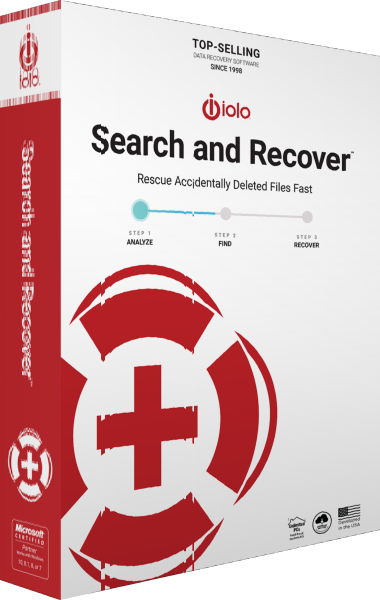
iolo Search and Recover
Search drives and removable media for deleted files using location controls, SmartScan and sector-level StrongScan.
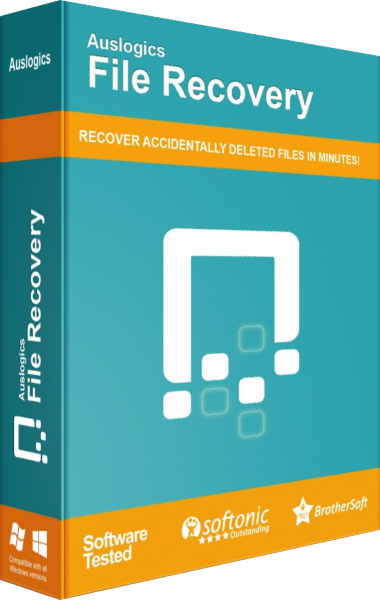
Auslogics File Recovery
Search for deleted files, preview results, and recover selected items.
Explore more
- iolo Search and Recover vs O&O DiskRecovery 14
- iolo Search and Recover vs EaseUS Data Recovery Wizard 20
- iolo Search and Recover vs Ashampoo Undeleter
- iolo Search and Recover vs Ashampoo Photo Recovery 3
- O&O DiskRecovery 14 vs Auslogics File Recovery
- Explore data recovery software
- Prepare independent file backups