Product comparison
O&O DiskRecovery 14 vs EaseUS Data Recovery Wizard 20
Both products search for lost files and let you review selected results before saving recovered copies. Choose by the search controls, preview support and recovery workflow you need.
Feature comparison
| Task | O&O DiskRecovery 14 | EaseUS Data Recovery Wizard 20 |
|---|---|---|
| Search approach | Selectable complementary recovery methods | Quick and deep scanning with lost-partition results |
| Narrowing results | File-type selection | File search and result filters |
| Inspection | Supported-file previews | Supported-file previews and inspection during scanning |
| Specialized controls | User-defined file signatures | Check the installed build for photo and video repair tools |
This is a documentation comparison. We have not tested recovery rates or scan speed on identical data, so the table does not establish which product will recover more files.
Which workflow fits?
O&O DiskRecovery 14
DiskRecovery 14 suits a search that needs selectable methods and custom file signatures. Review the search settings and preview supported results before selecting a destination.
EaseUS Data Recovery Wizard 20
Consider EaseUS when you prefer to narrow scan results using search, filters and previews. Check the installed version 20 build and selected edition before relying on repair tools or recovery allowances. Review the product page.
Our recommendation follows workflow coverage. A listed filename or preview is useful evidence, but you still need to open the saved copy and verify its contents.
Recovery checks and edition scope
This comparison covers the Windows catalog edition. The separate Mac product has a different workflow. Free, Pro and other licenses may differ in recovery limits and included tools.
- Stop adding data to the affected storage and avoid installing recovery software on it.
- Confirm the source device before scanning and review representative results.
- Save recovered files to another drive, then open them in their usual applications.
- Keep the source intact until you have checked the recovered data.
Recovery depends on surviving data. Overwritten contents may be unavailable, and software does not repair physical disk faults. Repeated scans are not a substitute for preserving the source.
Related products
Explore the catalog editions covered in this comparison.
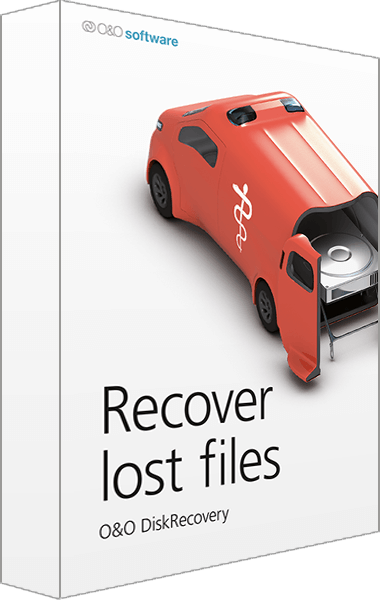
O&O DiskRecovery
Search for deleted files and review recoverable data before saving selected copies.
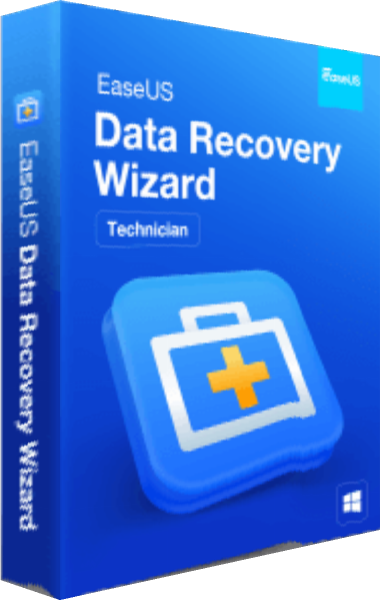
EaseUS Data Recovery Wizard
Search for lost Windows files, preview results, and recover selected data.