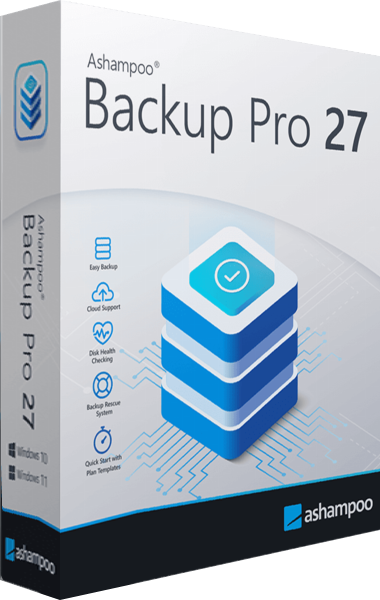





Ashampoo Backup Pro
A newer edition is available
Back up files and Windows systems to local, network or cloud storage, with individual file recovery and bootable rescue media.
Learn more about Ashampoo Backup Pro
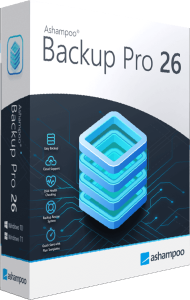
File backups, system images, and recovery tools
Back up files or partitions to local, network, or cloud storage. Includes Easy Backup, automatic plans, BitLocker unlocking, and bootable rescue media.
Ashampoo Backup Pro 26 backs up selected files, folders, or entire partitions. Store archives on local drives, external devices, network storage, or supported cloud services, and restore data when needed. Choose file backups for documents and other selected content, or a partition image when you want to preserve a broader system state.
Easy Backup starts with two choices: the data to protect and its storage destination. Use it for an on-demand backup or create a plan for recurring tasks. This is useful before reorganizing a folder or making changes to a collection of important documents. Once the plan exists, review its settings to match the way you want to maintain the archive.
The dashboard shows running and paused plans, previous backups, and upcoming operations. Rename plans to keep them recognizable as their contents change. Descriptive names make it easier to distinguish a document archive from a system image or a backup stored on an external drive. Check the last completed operation as well as the next scheduled run.
Version 26 also lets you unlock BitLocker-encrypted drives within the program and enable automatic shutdown after backups, including during an active operation.
Monitor selected folders for changes with real-time backups. Configured Plug & Play plans can start when their associated external drives are connected. Configure the plan first, then check the result after reconnecting the drive. Real-time updates and device triggers serve different workflows: one responds to changes in monitored folders, while the other responds to a device becoming available.
Choose manual, daily, weekly, or custom schedules. Configure compression, password protection, and how many previous backups to retain. Incremental backups store changes after the initial backup; periodic full backups provide another available approach. Retaining older versions gives you recovery points when you need a file from before a recent change. Balance that history with the storage available at your destination.
Recover selected files and folders from an image backup. Create bootable rescue media on a USB drive or disc to restore a system backup when the computer cannot start normally.
Recovery uses the data available in the chosen backup. Keep rescue media ready and check that important files are included in your plans. A useful first check is to restore a sample file to a separate folder and confirm that it opens as expected.
Backup Pro 25 already offers automated backup and recovery workflows. Version 26 focuses on making those tasks easier to start and manage, with two-step Easy Backup, a revised dashboard and navigation, and the ability to rename existing plans.
In-app BitLocker unlocking and automatic shutdown controls add convenience when preparing a destination or running a longer backup. Compare these workflow changes with how you currently create and review your archives.
Start by choosing the data you need to recover: current work documents, a photo collection, or an entire partition. Select a destination that fits the archive size and the way you intend to access it. Then configure the schedule and retained versions so the plan reflects how often the source changes.
After the first run, inspect the report and check a recovery example. Revisit the plan when folders move or new data becomes important. Backup Pro provides the tools to automate recurring work, while reviewing coverage helps keep that work relevant.
Review the available offer and license terms in the purchase section. Confirm the selected product and final checkout total before paying.
View Ashampoo Backup Pro 26 purchase options.
For the newer release, see Ashampoo Backup Pro 27 and review its plan-management and recovery workflow.
Compare plan management, storage and recovery in our Ashampoo Backup Pro 27 vs Ashampoo Backup Pro 26 comparison.
Read our O&O AutoBackup 8 vs Ashampoo Backup Pro 26 comparison to compare file copying, automation, storage destinations and system recovery with O&O AutoBackup 8.
Compare automation, backup history and recovery in our EaseUS Todo Backup Home vs Ashampoo Backup Pro 26 comparison.
Answers to common questions
Yes. Choose file and folder backups for selected data, or image backups for entire partitions.
Destinations include local drives, external storage, network locations, and supported cloud services.
It simplifies plan creation to source and destination selection, using defaults for other options. Review and adjust the plan settings afterward as needed.
Real-time backups respond to changes in selected folders. Plug & Play plans run when their configured removable drive is connected.
Yes. You can restore selected files and folders without restoring the entire partition.
Create bootable rescue media in advance and use it to access recovery tools and a suitable system backup. Recovery depends on the available archive and access to its destination.
Version 26 introduces Easy Backup and revised plan management, plus BitLocker unlocking and updated shutdown controls. See the version comparison.
Editorial rating by Find Your Software: 4.8 out of 5
A newer edition is available
Back up files and Windows systems to local, network or cloud storage, with individual file recovery and bootable rescue media.
Learn more about Ashampoo Backup Pro