Product comparison
EaseUS Todo Backup Home vs Ashampoo Backup Pro 26
Both products cover everyday file recovery and a wider system-backup workflow. Compare the tasks you need to automate, the destination you will use and the steps required to recover after Windows stops starting.
Feature comparison
| Task | EaseUS Todo Backup Home | Ashampoo Backup Pro 26 |
|---|---|---|
| Coverage | System, disk, partition and file backups | File, folder and partition-image backups |
| Automation | Schedules and Smart Backup for files and folders | Schedules, real-time folder backups and Plug & Play plans |
| Backup history | Full, incremental and differential methods | Incremental backups, periodic full backups and version retention |
| Destinations | Local, external and network storage; check cloud service scope | Local, external, network and supported cloud services |
| File retrieval | Mount supported images to extract files | Restore individual files from backups, including images |
| Emergency recovery | WinPE emergency media | Bootable rescue media |
| Distinct workflow | Cloning and Security Zone | Easy Backup and backup-plan dashboard |
This comparison follows manufacturer documentation for the listed editions. It does not rank speed or reliability from controlled tests. Included services depend on the selected offer.
Which workflow fits?
Consider EaseUS for cloning alongside backups
EaseUS Todo Backup Home combines backup plans with disk and system cloning. Smart Backup addresses selected files and folders. Security Zone provides a protected partition for backup storage.
A zone on the same physical drive remains dependent on that hardware. Keep another copy independently accessible. The features listed here describe Home capabilities without claiming they were all introduced in 2026.
Consider Ashampoo for device-triggered plans
Ashampoo Backup Pro 26 offers Easy Backup for source-and-destination setup, a dashboard for reviewing plans, and Plug & Play tasks associated with connected drives. Real-time folder backups provide another automation option.
Our recommendation is based on your routine: consider EaseUS when migration is part of the task, or Ashampoo when its plan setup and device triggers fit how you connect backup storage. Test the required workflow before relying on it.
Check your recovery plan
- Confirm that each plan includes the folders or partitions you need.
- Restore representative files to a separate folder and open them in their usual applications.
- Prepare recovery media and verify access to the backup destination before an emergency.
- Review retained versions and keep the required backup chain together.
Check cloud-provider compatibility and available capacity separately from the software license. Keep destination credentials accessible without the original computer. A completed job should be followed by a practical recovery check.
Related products
Explore the catalog editions covered in this comparison.
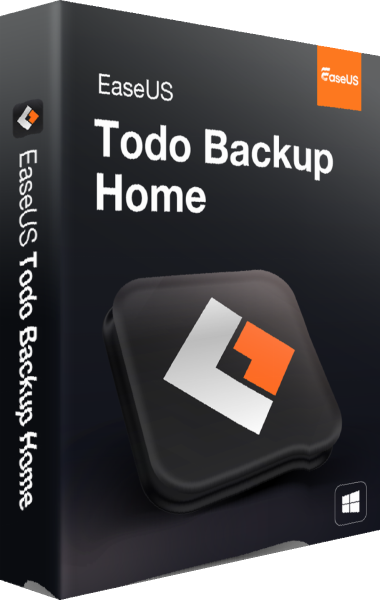
EaseUS Todo Backup Home
Create Windows system and file backups and prepare recovery or drive migration.
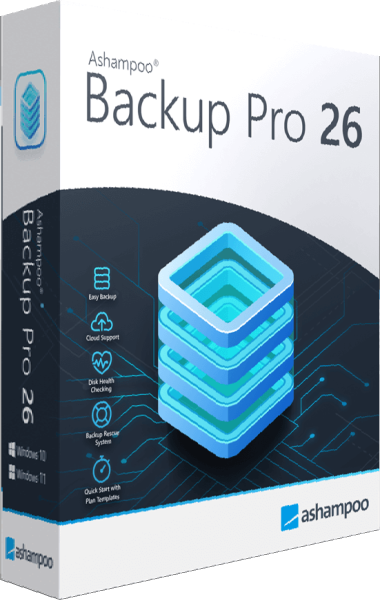
Ashampoo Backup Pro 26
Create automatic file and partition backups to local, network, or cloud storage.