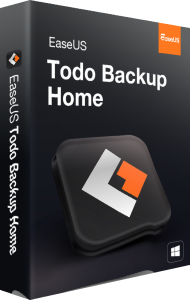

Plan recovery with EaseUS Todo Backup Home
EaseUS Todo Backup Home provides Windows system, disk, partition, and file backups, alongside cloning and recovery tools. Choose the scope around what you would need to restore after data loss or a drive change.
A document restore and a complete system recovery involve different preparation. Review the source selection before starting rather than assuming every connected drive is included.
Choose file backup or a system image
File tasks protect selected folders, while system and disk images cover a wider recovery scope. Image mounting lets you access individual files from supported backups.
Keep track of where your documents actually live, including separate data drives. Test retrieval of a recent document and a larger file to confirm that the saved contents are useful.
Select a backup method and schedule
Full, incremental, and differential backups offer different ways to maintain recovery copies. Smart Backup monitors selected files and folders for changes.
Choose the method around your recovery needs and available storage. Keep the required backup chain together and review retention before removing older images; a newer file alone may not represent a complete restore set.
Choose a destination you can still access after failure
Destination options include local storage, external drives, and network locations, with cloud options depending on the selected service and task.
A second partition on the same physical disk does not protect against that disk failing. Check destination capacity and credentials, and do not assume a cloud-storage allowance is included with every license.
Understand the role of Security Zone
Security Zone provides a dedicated protected partition for storing backup images. It adds a local storage option to the backup workflow.
A protected partition on the same drive is still dependent on that hardware. Keep another recovery copy independently accessible instead of treating the zone as a guarantee against ransomware or physical failure.
Prepare emergency recovery before Windows stops starting
The WinPE emergency-media workflow lets you prepare a bootable recovery device. Check that the recovery environment can see the intended backup location.
Create and test the media while the computer works. Keep access details and any needed recovery information separately, and confirm the source and target carefully before restoring over existing data.
Use cloning deliberately for a drive change
Disk, partition, and system cloning support transfer to another drive. Cloning serves a different purpose from retaining several dated recovery versions.
For a dedicated disk or partition cloning workflow, see EaseUS Disk Copy.
Inspect the source and destination before confirming, and preserve target data you still need. Verify the resulting installation and files before retiring the original drive.
Check the selected Home license and verify results
Review the selected offer for device coverage, duration, and included services. This overview describes Home features without claiming they were all introduced in the 2026 edition.
For planning recovery copies, see our file-backup guide and backup and disk-imaging category. Check completed jobs and representative restores; no backup workflow guarantees recovery from every incident.
Compare system-backup tools
Compare plan management, storage and recovery in our Ashampoo Backup Pro 27 vs EaseUS Todo Backup Home 2026 comparison.
Read our O&O DiskImage 23 vs EaseUS Todo Backup Home comparison for backup history, cloning, emergency recovery and edition-specific features.
Compare automation, backup history and recovery in our EaseUS Todo Backup Home vs Ashampoo Backup Pro 26 comparison.
Compare backup automation and recovery in our Acronis True Image 2026 vs EaseUS Todo Backup Home 2026 comparison.