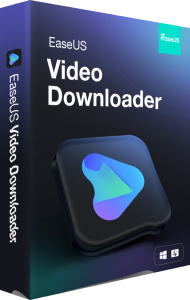

Save supported online media with EaseUS Video Downloader
EaseUS Video Downloader downloads video and audio from supported websites for local playback. It provides URL entry, batch tasks, playlist handling, and output choices for organizing an offline collection.
Start with the source you need and the device you will use for playback. Test one item before adding a larger collection so you can check the result and destination.
Add individual links or a playlist
Paste video URLs to create tasks, or use a supported playlist link. The download list separates active and completed items.
Review the selected items before starting a batch. A playlist can change over time, so check what was actually added instead of assuming it always contains the same collection.
Select source quality and output settings
Download settings let you choose available quality, format, subtitles, and a destination. Available options depend on the source and selected edition.
Higher resolution can increase storage use and transfer time. It does not recreate detail absent from the original, so choose around your display and confirm that the intended player opens the result.
Prepare audio-only copies
The Video to MP3 tool extracts audio from supported video files. Its settings include bitrate, sample rate, and output location.
Listen to a sample before converting many files. Keep an original when you may need the video later, and do not treat a higher bitrate as a way to recover missing audio quality.
Manage several transfers deliberately
Concurrent download tasks let you process several items. Completed entries show details such as format, duration, and file size.
Check available destination space before a long session. Review task status afterward and open representative files rather than relying only on the number of entries marked complete.
Review platform and service limits
Windows and Mac editions are available, with feature access and download limits depending on the selected offer. Support for a website can change as the service changes.
Do not assume every URL, private page, or streaming service can be downloaded. If a link fails, inspect the task result and current application behavior instead of treating repeated retries as a guarantee of success.
Distinguish downloading from recording your screen
For capturing your own demonstrations, screen activity, or webcam narration, see EaseUS Screen Recorder. Screen capture and URL-based downloads are different workflows.
Keep completed media organized and preserve another copy when it matters. Our file-backup guide explains recovery-copy planning for personal collections.