Product comparison
Ashampoo Backup Pro 28 vs Laplink DiskImage
Backup Pro 28 provides dedicated views for folder coverage, upcoming backups and recorded service activity. Laplink DiskImage centers on computer images and recovery, including hardware-change scenarios. Compare the backup routine and the recovery route you would use after a failure.
Compare backup workflows
| Task | Ashampoo Backup Pro 28 | Laplink DiskImage |
|---|---|---|
| Backup scope | Files, folders, drives and system partitions | Whole-computer, drive and partition images plus selected-file backups |
| Routine setup | Coverage and schedule overviews with direct access to plans | One-click imaging and automated backup options in current releases |
| Activity review | Service Log, dashboard status and progress amounts | Check backup-job status and results in the installed release |
| External-drive routine | Configured Plug & Play plans start on associated storage connection | Connection-triggered backup workflows in current releases |
| Storage and recovery access | Local, network and supported cloud destinations; Backup Explorer and rescue media | Check supported destinations; bootable media and RecoveryPartition workflows |
| Additional task | Drive checks and BitLocker support | Machine-independent restoration for supported hardware-change scenarios |
Which workflow fits?
Choose Backup Pro 28 to review several backup plans
Ashampoo Backup Pro 28: Folder coverage and planned-run views help identify which job protects a changing data folder and when it should run. Supported provider connections and individual-file retrieval through Backup Explorer suit a routine that needs both document versions and system recovery copies.
Choose DiskImage around its imaging and restoration workflow
Laplink DiskImage: Evaluate one-click imaging, bootable media and machine-independent restoration against the hardware and backup you intend to use. Keep a recovery route outside the original drive: a RecoveryPartition on that drive is still dependent on the same hardware.
The unnumbered Laplink catalog entry identifies the DiskImage 19 line. Automation and recovery controls can vary between installed releases. Machine-independent restoration should be tested for the destination hardware and required drivers rather than assumed to preserve every device setup unchanged.
Check your recovery plan
- Create a representative file backup or system image and confirm where it is stored.
- If using a connected-drive trigger, reconnect the associated destination and review the completed job.
- Recover a sample document and keep another copy separate from the original physical drive.
- Boot rescue media and confirm that the backup and any required storage drivers are available.
Keep the backup chain and recovery credentials accessible independently of the original computer. Check the saved result as well as the configured schedule, and restore a sample before depending on a new routine.
Compared products
Review the selected catalog versions and the edition needed for your backup and recovery tasks.
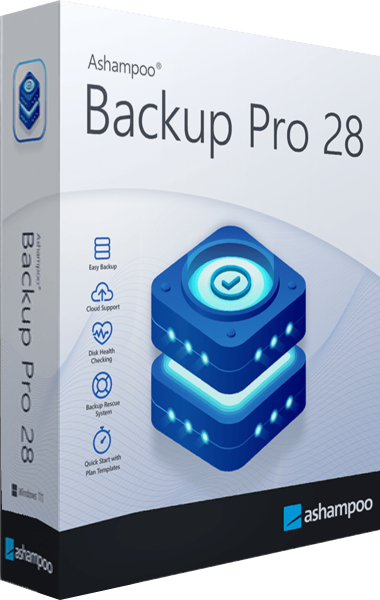
Ashampoo Backup Pro 28
Back up files and Windows systems, review folder coverage and schedules, and recover data from local, network or cloud storage.
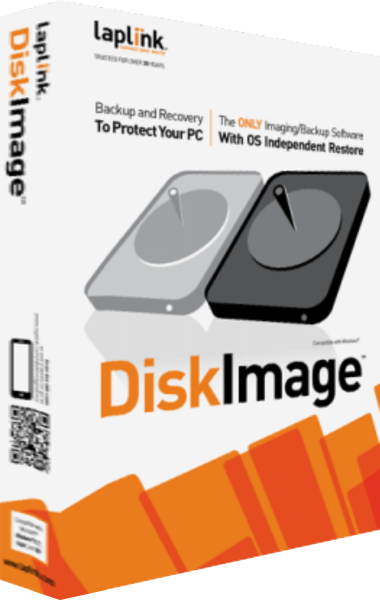
Laplink DiskImage
Create system images, back up selected files and prepare recovery workflows for Windows computers.