


Prepare a recovery copy of your Windows computer
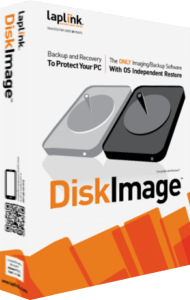
Laplink DiskImage creates backups of a complete computer, selected drives or partitions, and individual files and folders. Preserve the state you need to recover before a drive problem, failed change or accidental deletion interrupts your work.
Choose the backup scope around what matters. A collection of personal files and a complete working Windows environment need different recovery plans, even when both are managed in the same application.
Choose the source and a separate destination
One-click imaging provides a starting point for a full-computer backup, while other options let you select the drives or files to protect. Review the scope before starting and give the resulting backup a recognizable name.
Use a destination independent of the drive being protected and check that important data is included. Keep more than the latest copy when you need to recover a document from before an unwanted change.
Create and test bootable recovery media
A boot medium lets you start a recovery environment when the installed Windows system cannot run. Prepare it while the computer is working and keep it accessible with the information needed to locate your backup.
Test that the recovery environment can see the backup destination and the intended recovery drive. Before a full restore, confirm the destination carefully because restoring an image can replace its contents.
Understand the recovery partition option
The RecoveryPartition workflow can create a local bootable recovery environment and use a selected partition for backup storage. Its purpose is to make recovery tools available when normal startup fails.
Keep an independent copy on another destination as well. A recovery partition stored on the same physical drive cannot preserve access to its contents if that entire drive is lost or fails.
Plan restoration to different hardware
Machine-independent restoration helps adapt a saved system to different hardware. It provides a recovery route when replacing a computer or major components, rather than limiting every restore to the original machine.
Check the actual destination and test the recovered environment before relying on it for work. Device drivers, software activation and application behavior may still need attention; the feature is not a guarantee that every possible hardware change will produce an identical working result.
Automate a backup routine you have verified
The current product includes automated imaging options and a connection-triggered workflow for selected backups when an external drive is attached. Review the settings available in your installed release before leaving tasks unattended.
Begin with a manual backup and a test recovery of a small set of files. Check later job results so that a disconnected or full destination does not leave an unnoticed gap in your recovery history.
Keep the backup plan easy to use during recovery
Record which data each backup covers, where it is stored and how to start recovery. Review this information after moving folders or replacing storage, and keep source files available until the backup and restore process has been checked.
Explore disk imaging software for related tools. Our system-backup guide and file-backup guide explain how to plan recovery copies around your data.
Compare backup, migration and synchronization workflows
- Laplink DiskImage vs O&O DiskImage 23
- Laplink DiskImage vs Macrium Reflect X Home
- Laplink DiskImage vs EaseUS Todo Backup Home 2026
- Laplink DiskImage vs Acronis True Image 2026
- Laplink DiskImage vs Ashampoo Backup Pro 26
- Laplink PCmover Home vs Laplink DiskImage
- Laplink Sync vs Laplink DiskImage
- Laplink PCmover Image & Drive Assistant vs Laplink DiskImage