
Bring selected applications and data to a replacement PC
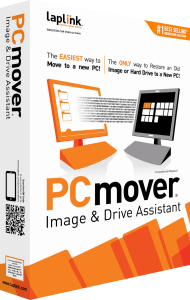
Laplink PCmover Image & Drive Assistant transfers selected applications, files, user profiles and settings from a mounted system image or an attached old hard drive to a new Windows PC. The destination keeps its installed Windows operating system while you bring across the parts of the old setup you need.
This workflow suits a replacement computer when the original PC is unavailable but its complete image or readable drive remains. Start with a list of essential programs, documents and accounts so that the transfer reflects your working setup.
Connect the old drive or mount its image first
PCmover does not open disk-image formats directly. Mount the image with Windows where supported, or with the imaging application that created it, so that its contents appear as a drive. Alternatively, attach the original hard drive to the destination computer.
The source must provide the complete old drive image in a mountable form. An ordinary folder backup or an image that cannot be mounted does not provide the required source. PCmover also depends on the old drive being readable; physical disk repair and deleted-file recovery are separate tasks.
Review applications, users and folders before transferring
After analyzing the source, the wizard lets you customize the transfer. Review application selections, user accounts, folders and file types rather than assuming everything from the old installation belongs on the new computer.
Check which applications are already installed on the destination and avoid transferring duplicate installations. Review the destination account for each user's material, and exclude obsolete software or folders that you no longer need.
Check restored programs and their activation
Selected application transfer can reduce manual setup, but it does not guarantee that every older program will work on the destination. Some applications need an update, repair, reinstallation or activation with their original license information.
Antivirus and antispyware software and hardware-specific drivers are excluded from the advertised restore scope. Plan to install suitable versions separately. Protected media may also need its playback rights restored, so test important programs and files after restarting the new PC.
Keep backup and migration as separate steps
Image & Drive Assistant uses an existing source to populate a working Windows installation. To create and retain recovery images, explore Laplink DiskImage and our file-backup guide.
The documented Undo Previous Transfer option can reverse a completed PCmover transfer. Keep independent backup copies as well, and retain the original image or drive until you have checked the migrated documents, accounts and applications.
Choose a workflow around the source you have
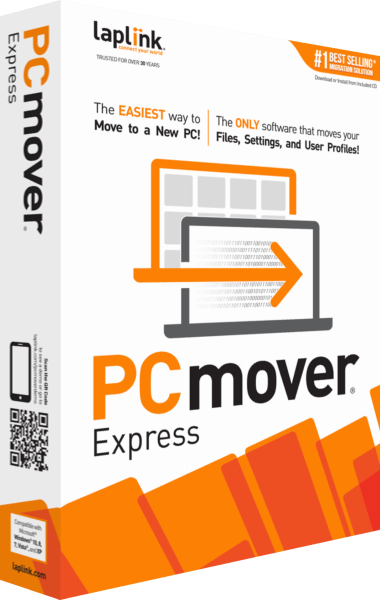
Image & Drive Assistant works from a mounted image or attached drive. If both computers are running, compare the transfer scope of PCmover Home and PCmover Express. Express transfers data and settings without installed applications; Home includes selected application transfer with its own user and drive limits.
For an image-based move, first establish that the saved source can be mounted and inspected. Then use the wizard's selections to control the migration and check the result before retiring the old storage. Browse the Laplink software catalog for related tools.
Compare image-based migration, cloning and recovery
Explore PC migration software for related catalog tools and workflows.