Product comparison
Laplink PCmover Image & Drive Assistant vs EaseUS Todo PCTrans
Both products document ways to bring selected applications and data from an old system into a working Windows installation. The important differences are the source they can analyze, how that source is prepared and which transfer methods the selected edition includes.
Compare task coverage
| Task | Laplink PCmover Image & Drive Assistant | EaseUS Todo PCTrans |
|---|---|---|
| Main task | Selected application, file, profile and settings migration from an existing source | Selected application, file, account and settings transfer through several documented routes |
| Attached old system disk | Connect the readable old drive to the destination PC | Transfer via disk analyzes an attached old system disk; check edition availability |
| Saved image source | A complete old drive image mounted as a drive before PCmover starts | Transfer via backup uses a PCTrans-created .pct transfer package |
| Image-format handling | Mount with Windows where supported or the software that created the image | A .pct transfer package is different from a general system-image format |
| Destination Windows | Keeps the destination operating system while migrating selected content | Transfers selected content into a working destination Windows system |
| Source condition | Needs an accessible old installation; not physical repair or deleted-file recovery | Disk transfer depends on readable source data and registry; a corrupted source registry can prevent application rescue |
Which workflow fits?
Consider PCmover when you already have a complete image
Image & Drive Assistant is a candidate when a complete saved system image can be mounted or the original drive can be attached and read. PCmover does not open image formats directly. Confirm the mounting route before planning the migration.
Review the proposed applications, accounts and folders after analysis. The old PC itself need not start, but a partial folder backup does not supply the complete source this workflow expects.
Consider PCTrans for its disk or transfer-package workflow
EaseUS Todo PCTrans documents Transfer via disk for an old system disk that no longer boots. The source installation still needs to be analyzable: its help warns that a corrupted registry can prevent application rescue. Check the installed edition for this method.
PCTrans also creates its own .pct transfer packages. Do not assume that this package route reads any existing image produced by a different backup application.
Verify the result before retiring the source
- Identify whether the source is a complete mounted image, an attached system disk or a PCTrans transfer package.
- Preserve the original source and verify that the intended tool can analyze it before selecting applications or users.
- Review destination accounts and exclude duplicate or obsolete applications; retain installers and activation information.
- Restart the destination and test real documents, application features, profiles and access to associated data.
This is a comparison of documented workflows, not a measured application-compatibility ranking. Some applications need reactivation, repair or reinstallation after either migration.
Compared products
The comparison covers the standalone Image & Drive Assistant listing and the unnumbered PCTrans product. Confirm the transfer methods and allowances in the selected PCTrans edition.
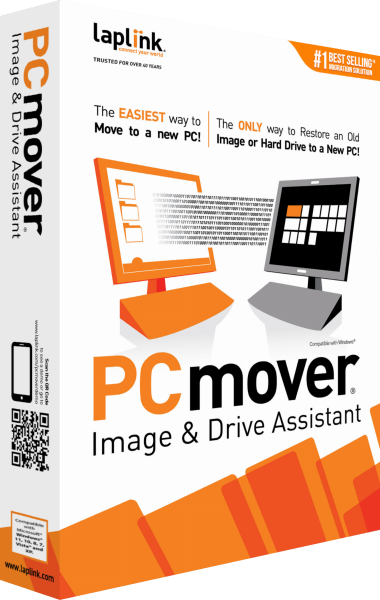
Laplink PCmover Image & Drive Assistant
Transfer selected applications, files, profiles and settings from a mounted image or old drive to a new Windows PC.
EaseUS Todo PCTrans
Transfer selected applications, files, accounts and settings between Windows PCs.