Product comparison
Laplink PCmover Home vs EaseUS Todo PCTrans
Both products help move selected applications and personal data into another Windows installation. Start with the accounts, storage locations and transfer method you need: a familiar product name alone does not establish whether the selected edition covers the move.
Compare task coverage
| Task | Laplink PCmover Home | EaseUS Todo PCTrans |
|---|---|---|
| Main task | Selected application, file and settings transfer | Selected application, file, account and settings transfer |
| User scope | Currently logged-on local user; no multiple-user or domain-user migration | Account and settings selection; check the selected edition and account scenario |
| Storage scope | C: on the source to C: on the destination | Review the proposed files, locations and destination in the transfer wizard |
| Transfer route | Working PCs connected by network or a supported Laplink transfer cable | Documented direct and backup-based transfer routes; availability depends on edition |
| Local application move | PC-to-PC transfer; not a tool for moving apps between local drives | A local migration workflow can relocate supported applications between partitions |
| Recovery boundary | No image or detached-drive restoration in Home | A transfer package is different from a complete bootable system backup |
Which workflow fits?
Consider Home for a single local-user move
Laplink PCmover Home is a candidate when the source works, the needed content belongs to the currently logged-on local user and the move fits C: to C:. Inventory files on other drives or under other accounts before choosing it.
Consider PCTrans when its transfer routes fit your plan
EaseUS Todo PCTrans documents direct transfer, transfer through a saved package and local application migration. Check which routes, account types and allowances the selected edition supports. Local migration serves a different task from setting up a second PC.
A PCTrans transfer package contains selected migration content. Do not treat it as a system image that can restore the entire original Windows installation.
Verify the result before retiring the source
- List the applications, user accounts and file locations that must move; check whether the Home edition covers every required item.
- Review the transfer preview and destination folders. Keep installers, sign-in details and activation information available.
- Open real documents and test essential application features, settings and access to associated files on the destination.
- Keep the source PC and an independent backup until the new working setup is verified.
Application compatibility and activation still need attention with either product. This is a comparison of documented workflows, not a measured transfer-speed or application-success ranking.
Compared products
The PCmover card refers specifically to Home. The PCTrans catalog listing covers an unnumbered product; check the actual edition for transfer methods and allowances.
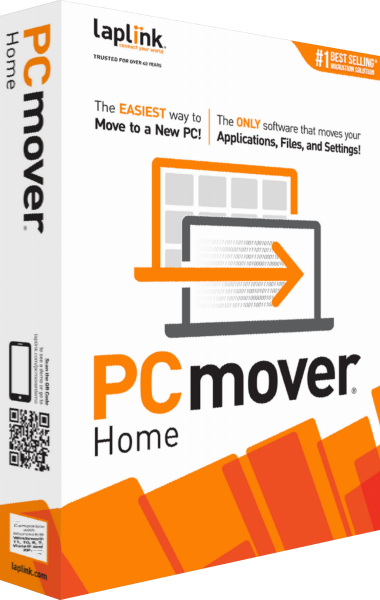
Laplink PCmover Home
Transfer selected applications, files and settings for the currently logged-on local user between working Windows PCs.
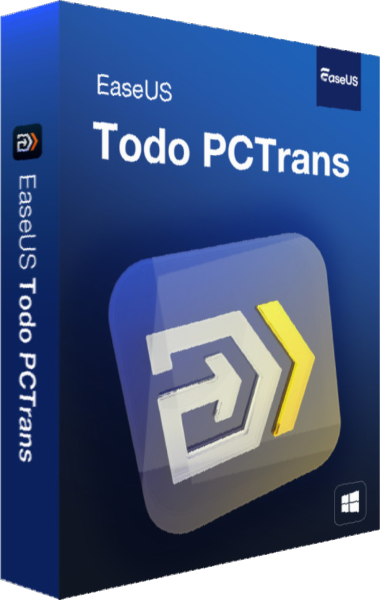
EaseUS Todo PCTrans
Transfer selected applications, files, accounts and settings between Windows PCs.