
Move selected applications, files and settings to a new PC
Laplink PCmover Home transfers selected applications, files and settings between working Windows computers. Its wizard helps choose the material to move instead of rebuilding every part of a personal setup manually.
Begin with the work you want to continue on the new computer. Identify essential applications, documents and settings, then use that list to review the transfer selection and check the result afterward.
Understand the Home edition before starting
Home transfers the currently logged-on local user and is limited to the C: drive on the source and destination. It does not support multiple-user or domain-user migration, additional drives, in-place upgrades or restoration from an old image or detached hard drive.
Check where your important files actually live. Material stored under another account or on another volume needs a separate plan. If those items are central to the migration, compare the appropriate edition before starting rather than assuming every PCmover workflow is included in Home.
Choose the source, destination and transfer contents
Install PCmover Home on both PCs and use the wizard to connect them. The documented transfer methods include a network connection and supported Laplink transfer cables. Review the application and file selections before continuing.
Make sure the source and destination roles match your intention. When an application is already present on the new computer, resolve which installation you will keep before transferring, and avoid leaving duplicate versions of the same working tool.
Review application compatibility and activation
Not every application or setting can be transferred successfully. Some programs need activation again on the destination, and security applications and hardware-specific drivers are excluded from the documented transfer scope.
Keep sign-in details and installation information for essential software available. After migration, open real documents and check the features you use, including add-ins, printing and access to associated data, rather than checking only that the program starts.
Check the new computer before retiring the old one
Inspect the transfer result and confirm the files and settings you selected. Test each important application on the destination before treating the new computer as your normal working environment.
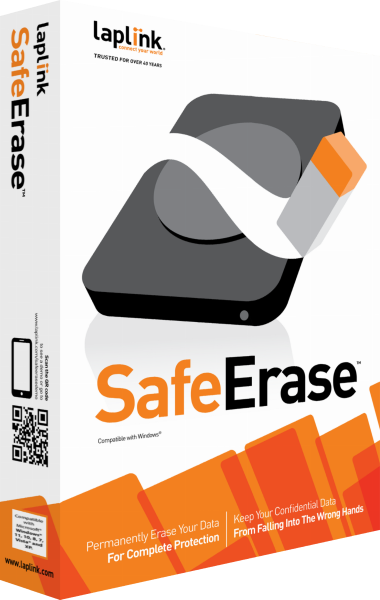
Keep the original computer and independent backup available while you verify the result. If you later plan to erase the old storage before handing it over, review Laplink SafeErase after confirming that the retained copies are usable. A transfer can help establish a new setup, but it is not an ongoing backup or a complete recovery image of the original machine.
Keep migration separate from imaging and recovery
PCmover Home moves a selected working setup to another PC. It is not intended to replace the destination Windows installation with an image or recover a setup from a computer that no longer runs. For a readable old drive or mounted image, see PCmover Image & Drive Assistant.
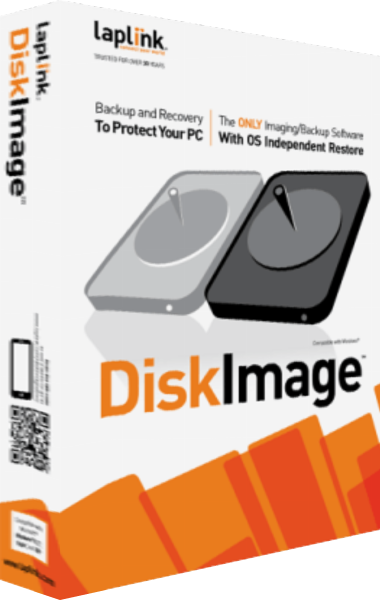
For a system-image workflow, see Laplink DiskImage. Our file-backup guide explains independent copies, and the Laplink software catalog provides related products already on this site.
Compare PC migration workflows
Explore PC migration software for related catalog tools and workflows.