Product comparison
Laplink PCmover Home vs Laplink DiskImage
These products address different parts of a PC replacement. PCmover Home adds selected applications, files and settings to an existing destination environment. DiskImage preserves a computer or selected storage contents for later recovery. Decide whether you want to keep the new Windows setup or recover a saved system.
Compare task coverage
| Task | Laplink PCmover Home | Laplink DiskImage |
|---|---|---|
| Main task | Move selected applications, files and settings between working PCs | Create system, drive, partition or file backups and restore saved content |
| Destination Windows | Use the existing destination environment | A system-image restore can replace the destination environment and its contents |
| Selection | Currently logged-on local user; C: to C: transfer | Select backup and recovery scope, from individual files to a whole computer |
| Source no longer starts | Home cannot restore an old PC from an image or detached drive | Bootable recovery media can provide access to an existing backup |
| Different hardware | Selected content moves into the working destination PC | Machine-independent restoration supports adapting a saved system to different hardware |
| Role over time | A migration step in setting up another PC | A backup and recovery workflow that needs maintained, accessible copies |
Which workflow fits?
Use Home when keeping the new Windows environment
Laplink PCmover Home is a candidate for moving selected working tools and personal data without replacing the destination system with the original installation. The source must work, and the selection must fit the currently logged-on local user and C:-to-C: limits.
Use DiskImage when a saved system is the recovery source
Laplink DiskImage is relevant when you need a system-image backup or restoration of saved contents. Its boot media provide a recovery environment, and machine-independent restoration supports a different hardware destination. Check the installed release and recovery instructions for the exact workflow.
Restoring a complete image is different from inserting selected applications into an existing Windows setup. A file restore can recover documents, but copying program folders alone does not recreate an application's installation and settings.
Use both stages when needed
You can preserve a system image before a selected PCmover transfer and retain it while checking the destination. Creating an image does not enable image-based migration in the Home edition.
Verify the result before retiring the source
- Decide whether the destination should retain its existing Windows installation or receive a saved system image.
- Before a Home transfer, inspect the selected local user, C: contents and application compatibility.
- Before an image restore, test boot media and backup access, preserve needed destination files and confirm the target drive.
- After either workflow, test startup, documents, important applications, device access and software activation before retiring the source.
Neither a completed migration nor a successful backup job establishes that every application will work on the destination. We have not benchmarked transfer speed or restoration across identical hardware changes.
Compared products
This comparison covers PCmover Home and DiskImage 19. The current DiskImage overview does not identify a release, so confirm the recovery features in your installed build.
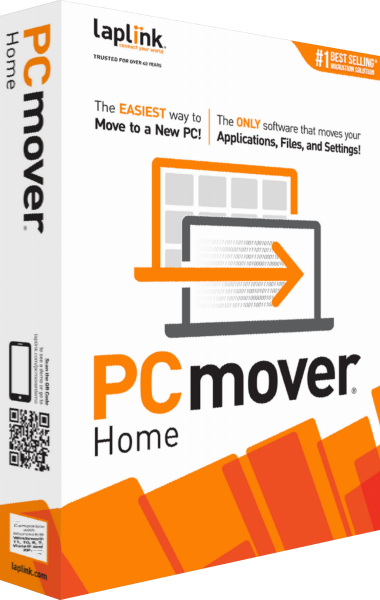
Laplink PCmover Home
Transfer selected applications, files and settings for the currently logged-on local user between working Windows PCs.
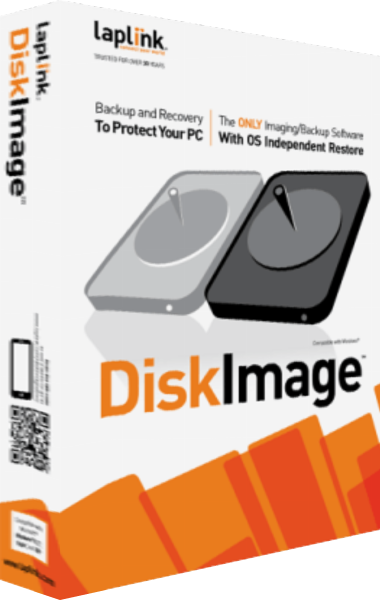
Laplink DiskImage
Create system images, back up selected files and prepare recovery workflows for Windows computers.