Product comparison
O&O Migration Kit vs EaseUS Todo PCTrans
Compare the complete move you need to perform: preserve the original, transfer selected content, verify the destination and prepare the old device for retirement. These products cover different portions of that process.
Compare task coverage
| Task | O&O Migration Kit | EaseUS Todo PCTrans |
|---|---|---|
| Purpose | Backup, transfer and old-PC retirement bundle | Dedicated application and data migration |
| Transfer component | Laplink PCmover | Todo PCTrans |
| Selected content | Applications, files, settings and profiles | Applications, files, accounts and settings |
| Recovery preparation | DiskImage component for system-image backup | Prepare an independent recovery copy separately |
| Old-PC retirement | SafeErase component for data erasure | Do not assume a whole-device erasure tool is included |
| Edition scope | Check bundled component editions and versions | Check transfer methods and allowances in the selected edition |
The comparison follows vendor documentation. We have not measured transfer speed or application compatibility on identical installations.
Which approach fits?
Consider the kit for a staged PC move
O&O Migration Kit combines DiskImage, Laplink PCmover and SafeErase. The published kit covers backup, selected application and data transfer, and deletion from the old computer after verification.
Check the included editions and licenses. Current standalone component pages do not establish which release the bundle includes. Windows itself is outside the published kit.
Consider PCTrans for the transfer stage
EaseUS Todo PCTrans is a shortlist option when you already have backup and retirement tools. Review the installed edition for direct or backup-based transfer methods and migration allowances.
Our advice follows task coverage: compare the kit when you need all three stages, or a dedicated migration tool when the remaining stages are already covered. Neither approach guarantees that every application will work unchanged.
Verify the move before retiring the source
- Preserve a recovery copy and record essential applications and working folders.
- Inspect the transfer selection and prepare installers and activation details.
- Test documents, applications, accounts and peripherals on the destination.
- Keep the original until the new environment and independent recovery copies are verified.
Moving selected applications into another Windows installation differs from cloning a drive. Choose the workflow around the destination you intend to use. Only begin old-device erasure after preserving everything still needed and confirming the target.
Related products
Explore the catalog editions covered in this comparison.
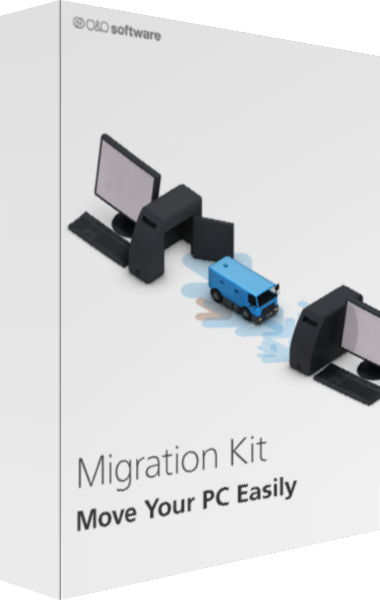
O&O Migration Kit
Plan a PC move with backup, application transfer, and old-device data erasure.
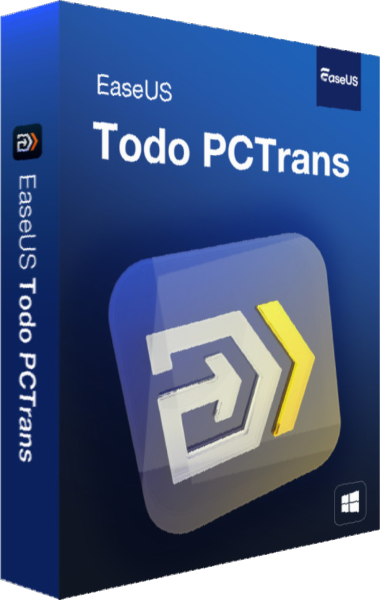
EaseUS Todo PCTrans
Transfer selected applications, files, accounts and settings between Windows PCs.