Product comparison
Laplink PCmover Image & Drive Assistant vs Laplink DiskImage
These tools can be used at different stages of the same replacement-PC plan. DiskImage creates and restores backups. Image & Drive Assistant uses an existing mounted image or old drive to move selected applications and data into the destination Windows installation. First decide which Windows environment you intend to keep.
Compare task coverage
| Task | Laplink PCmover Image & Drive Assistant | Laplink DiskImage |
|---|---|---|
| Main role | Selective migration from an existing image or old drive | System, drive, partition and file backup with restoration |
| Creates the recovery source | Needs an existing readable drive or complete mounted image | Creates saved backups for later recovery |
| Destination operating system | Keeps the destination Windows installation | A system-image restore can replace the destination Windows installation and its contents |
| Selected application setup | Analyzes the old installation and offers application and user selections | Restores saved system contents; extracting program folders alone does not install applications into another Windows setup |
| Original PC unavailable | Runs on the new PC using the accessible old source | Prepared bootable recovery media can access a previously saved backup |
| Different hardware | Moves selected content into the destination environment | Machine-independent restoration supports adapting a saved system to different hardware |
Which workflow fits?
Use PCmover when keeping the new Windows installation
Image & Drive Assistant is relevant when the new PC already has the Windows setup you intend to use. Mount the complete source image with suitable software or attach the original drive, then review which applications, profiles and files should migrate.
This is a migration stage. It does not create the image or open arbitrary image formats directly, and it cannot make unreadable source data usable.
Use DiskImage when the saved system is the intended result
Laplink DiskImage is relevant when you need to create a recovery image or restore a saved system. Test recovery-media access to the backup and target. Its machine-independent restoration supports a different hardware destination, but drivers and software activation can still need attention.
Combine backup and selected migration deliberately
You can retain a DiskImage backup and use a mounted source for PCmover migration if the installed imaging software supplies a suitable mounting route. Confirm that route before relying on it. Recovering individual documents from a backup and migrating installed applications are different operations.
Verify the result before retiring the source
- Decide whether the destination should keep its installed Windows or receive the saved system environment.
- For PCmover, verify that the complete old image can be mounted or the attached source installation can be read.
- For DiskImage restoration, test recovery-media access, preserve needed destination data and confirm the target drive.
- After migration or restoration, test important applications, real documents, account access, device behavior and activation.
Neither a completed transfer nor a completed image restore proves that every application will work on the destination. Keep the original recovery source until verification is complete.
Compared products
The comparison covers standalone Image & Drive Assistant and DiskImage 19. The current DiskImage overview does not identify a release, so confirm recovery and mounting features in the installed build.
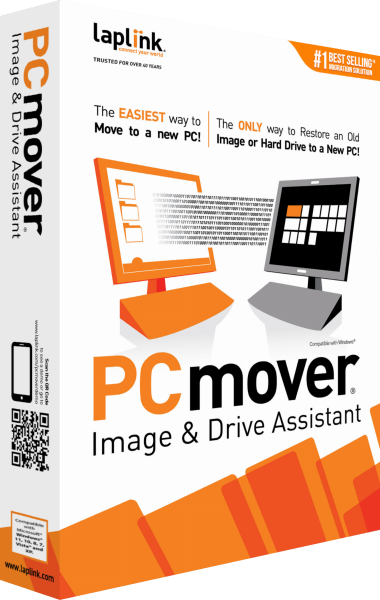
Laplink PCmover Image & Drive Assistant
Transfer selected applications, files, profiles and settings from a mounted image or old drive to a new Windows PC.
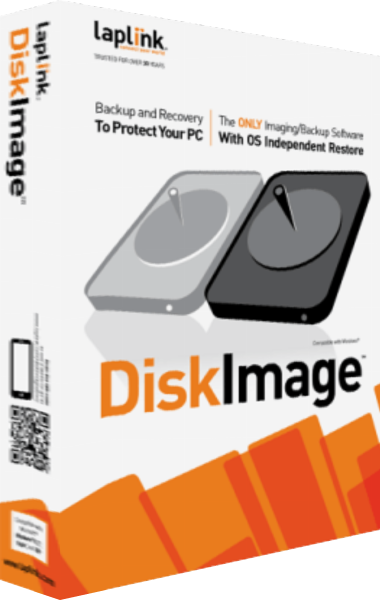
Laplink DiskImage
Create system images, back up selected files and prepare recovery workflows for Windows computers.