Product comparison
Laplink DiskImage vs Macrium Reflect X Home
Compare two Windows imaging workflows by the backups they produce and the recovery steps you can actually complete. Reflect X Home is the X generation; features and entitlements should not be transferred from older perpetual Reflect licenses.
Feature comparison
| Task | Laplink DiskImage | Macrium Reflect X Home |
|---|---|---|
| Coverage | System, drive, partition and selected-file backups | Disk and partition images plus file/folder backups |
| Recovery history | Check image methods and automation in the installed release | Full, differential and incremental backups with schedules and retention |
| Recovery media | Bootable recovery environment | WinPE/WinRE-based rescue media |
| Drive migration | Cloning and machine-independent restoration workflows | Disk cloning for replacement storage |
| Interrupted imaging | Verify the available job controls for the installed build | Resumable imaging in Reflect X |
| Backup-file protection | Keep archives independent of the source and review access controls | Image Guardian protects supported backup files |
Laplink version scope
The Laplink entry records software version 19. Its current product overview does not identify a release number, so automation, RecoveryPartition and connection-triggered functions described there should be checked in the installed build rather than assumed for every version 19 installation.
Machine-independent restoration is a recovery workflow for hardware changes. Check storage drivers, Windows startup and application activation on the destination; it does not guarantee an identical working result on every computer. Backup formats and recovery media should also be verified separately for each application.
Choose around backup history and recovery practice
Consider Reflect X Home when resumable imaging, its retention workflow or Image Guardian are relevant to your personal backup routine. Image Guardian protection for supported backup files does not remove the need for independent copies.
Consider Laplink when its system-imaging and machine-independent restoration workflow fits the recovery plan. Boot the recovery environment and inspect the destination before relying on either application for a drive failure.
Reflect X Home is intended for non-commercial use. Confirm the selected X entitlement and renewal behavior separately; an older Home license does not establish access to current X functions.
Review Laplink DiskImage and Macrium Reflect X Home for the compared catalog entries.
Test recovery before relying on an unattended plan
- Create a backup with a recognizable recovery date and known sample files.
- Create rescue media and test access to the archive storage.
- Restore selected files to another folder and compare their contents.
- For a drive migration, test the replacement installation before retiring the original drive.
These are documented workflow comparisons, not measured backup-speed or recovery-success results. Keep a backup independent of the source physical drive, retain useful recovery dates and identify the target carefully before restoration or cloning replaces its contents.
Compared products
Cards identify the compared catalog entries. Check installed versions and edition or plan entitlements separately.
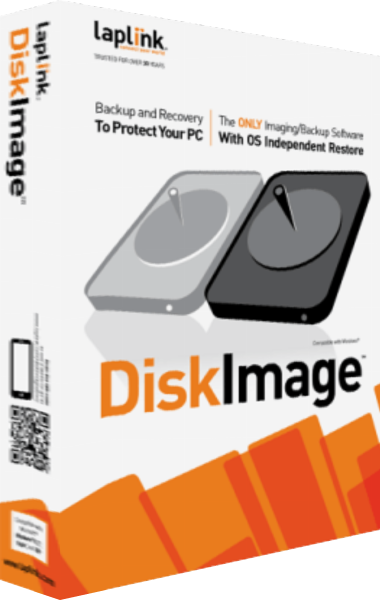
Laplink DiskImage
Create system images, back up selected files and prepare recovery workflows for Windows computers.
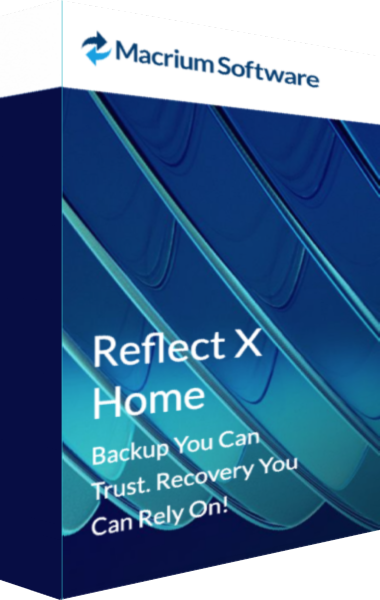
Macrium Reflect X Home
Create disk images and file backups with Reflect X Home and prepare rescue-media recovery.