Product comparison
Ashampoo Backup 2025 vs Laplink DiskImage
Both products support image-based recovery after a Windows failure. Backup 2025 emphasizes a scheduled partition routine; Laplink DiskImage also provides selected-file backups and a recovery-partition workflow. Check where the archive lives and how recovery starts if the original drive is unavailable.
Compare backup workflows
| Task | Ashampoo Backup 2025 | Laplink DiskImage |
|---|---|---|
| Backup selection | Complete partitions, including a Windows installation | Whole-computer, drive, partition and selected-file backups |
| Routine operation | Scheduled incremental updates | Automated backup options in current releases |
| Connected storage | External-drive destination available for the scheduled run | External-drive connection-triggered backups in current releases |
| File retrieval | Through the application or its rescue system | Selected-file recovery alongside image restoration |
| Recovery environment | Bootable USB flash drive or disc | Bootable media and RecoveryPartition workflow |
| Different hardware | Partition-restoration workflow; validate the target in advance | Machine-independent restoration workflow, subject to recovery preparation |
Which workflow fits?
Choose Backup 2025 for a partition-focused routine
Ashampoo Backup 2025 backs up complete partitions. You want to keep complete partition images on an external drive or network and use a separate rescue medium. Confirm that the archive includes the partitions required to recover the Windows installation.
Choose Laplink DiskImage for its wider recovery workflows
Laplink DiskImage offers a broader workflow. You need selected-file plans, connection-triggered backups or the recovery-partition approach. Machine-independent restoration can be relevant to a hardware replacement, but storage access, drivers and the target setup still need checking.
Laplink DiskImage is an unnumbered catalog entry. Confirm installed-release support for automation and recovery features instead of treating every older license as the same release. A RecoveryPartition on the original physical disk is not an independent copy against that disk failing.
Check your recovery plan
- Compare the partitions included in an image and the option to save selected files separately.
- For a connection-triggered plan, connect the intended external drive and review the resulting backup.
- Test a standalone recovery medium as well as any recovery partition you plan to use.
- Before restoring to different hardware, confirm storage access and preserve another copy of the archive.
Automatic updates depend on successful backup runs. Keep the initial archive and required updates together, review task results and retain a copy on a separate physical device. Archive verification is useful alongside a practical restore test.
Compared products
Explore these catalog editions and confirm the backup and recovery functions you need.
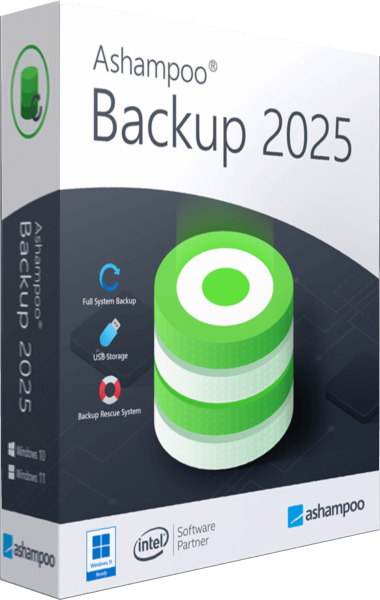
Ashampoo Backup 2025
Back up Windows partitions with scheduled incremental updates and recover data through the application or bootable rescue media.
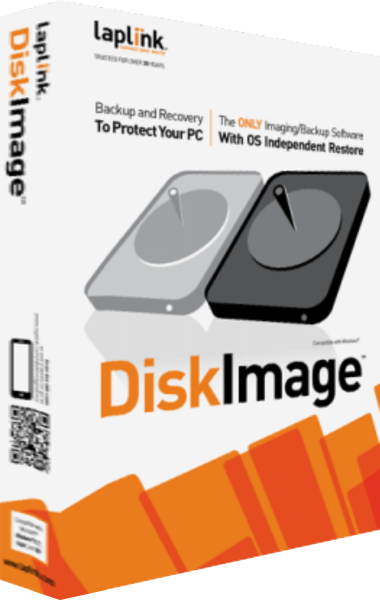
Laplink DiskImage
Create system images, back up selected files and prepare recovery workflows for Windows computers.
Explore more
- Ashampoo Backup 2025 vs Ashampoo Backup Pro 27
- Ashampoo Backup 2025 vs EaseUS Todo Backup Home 2026
- Ashampoo Backup 2025 vs O&O DiskImage 23
- Ashampoo Backup 2025 vs Macrium Reflect X Home
- Ashampoo Backup 2025 vs Acronis True Image 2026
- Ashampoo Backup Pro 27 vs Laplink DiskImage
- How to choose backup software
- Plan a Windows system backup