Product comparison
Ashampoo Backup 2025 vs O&O DiskImage 23
Backup 2025 focuses on scheduled partition images. DiskImage 23 combines images and file backups with backup chains, retention controls and additional-copy destinations. The main decision is whether a basic image routine covers your needs or you want more control over backup history and a second copy.
Compare backup workflows
| Task | Ashampoo Backup 2025 | O&O DiskImage 23 |
|---|---|---|
| Backup selection | Entire partitions, including a Windows installation | System, drive, partition and file backups |
| Plan overview | Partition, destination and schedule setup | Guided overview with backup history and protection status |
| Backup history | Scheduled incremental updates | Automatic backup chains, retention and scheduled full backups |
| Destinations | Local, external and local network storage | Primary backups plus additional local, network, S3 or WebDAV copies |
| Additional drive tools | Partition-backup and recovery workflow | Drive cloning alongside backup and recovery |
| Recovery and protection | File recovery and bootable rescue media | Supported-image file retrieval and recovery media; Fortress Mode is Premium-specific |
Which workflow fits?
Choose Backup 2025 for a partition-focused routine
Ashampoo Backup 2025 backs up complete partitions. You want to automate images of complete partitions to an external drive or local network. Keep the necessary updates together and test retrieving a file through the application before relying on the archive.
Choose DiskImage 23 for chain management and additional copies
O&O DiskImage 23 offers a broader workflow. You need separate file backups, explicit chain and retention controls, or a second-copy task after the primary backup. Review both results: a successful primary backup does not show that the additional transfer has also completed.
The page compares Backup 2025 with DiskImage 23. Fortress Mode belongs to DiskImage Premium Edition. Additional-copy storage is a separate stage after the primary backup; it should be assessed with the full chain and recovery access in mind.
Check your recovery plan
- Select a sample partition and compare how each application presents its backup history.
- Review which full backup and updates must remain available under the chosen retention settings.
- If using an additional copy, inspect its transfer result and retrieve a file from that destination.
- Start rescue media and confirm the required storage is visible before attempting system recovery.
Automatic updates depend on successful backup runs. Keep the initial archive and required updates together, review task results and retain a copy on a separate physical device. Archive verification is useful alongside a practical restore test.
Compared products
Explore these catalog editions and confirm the backup and recovery functions you need.
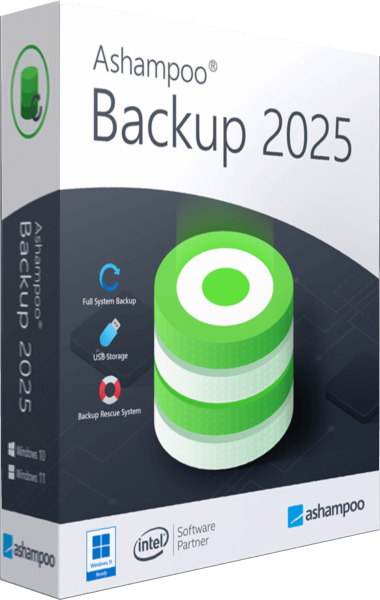
Ashampoo Backup 2025
Back up Windows partitions with scheduled incremental updates and recover data through the application or bootable rescue media.
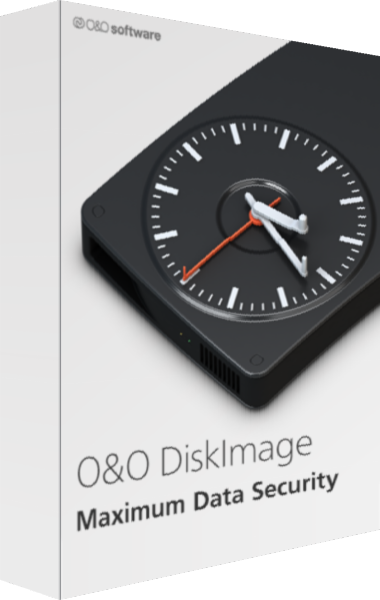
O&O DiskImage
Create system images and file backups with scheduled chains and recovery tools.
Explore more
- Ashampoo Backup 2025 vs Ashampoo Backup Pro 27
- Ashampoo Backup 2025 vs EaseUS Todo Backup Home 2026
- Ashampoo Backup 2025 vs Macrium Reflect X Home
- Ashampoo Backup 2025 vs Acronis True Image 2026
- Ashampoo Backup 2025 vs Laplink DiskImage
- Ashampoo Backup Pro 27 vs O&O DiskImage 23
- How to choose backup software
- Plan a Windows system backup