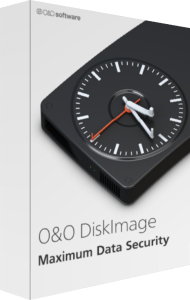

Plan system and file backups with O&O DiskImage 23
O&O DiskImage 23 backs up complete computers, drives, partitions, and selected files or folders. It also provides drive cloning and recovery workflows for situations where Windows no longer starts.
Choose the recovery goal before configuring a task. Restoring a document, replacing a drive, and rebuilding a Windows installation involve different backup scopes and preparation.
Choose an image or a file-backup task
A system-drive image includes Windows, installed applications, and settings on that drive. File backups target selected collections, and individual files can also be retrieved from supported images.
Check the sources rather than assuming every attached drive is included. Test a representative restore to a separate location where possible and verify the contents in their normal applications.
Review the guided interface introduced in version 23
Version 23 brings backup history, protection status, and recommendations into a redesigned guided overview.
Use the overview to inspect when a useful copy was last created and whether action is needed. A completed task indicator is useful context, but recovery preparation also means checking destinations and access to saved data.
Configure backup chains and retention
Automatic backup chains support recurring tasks. Version 23 adds history controls with retention periods and scheduled full backups.
Keep the required backup chain together and inspect the history settings before allowing older versions to be removed. Confirm how much recovery history you need rather than basing retention only on available space.
Add a second copy outside the primary destination
Version 23 can copy backups to another drive, a network share, S3-compatible storage, or WebDAV. Background transfers include verification and retry controls.
Check both the primary backup and the second-copy status. A local backup finishing does not prove that the remote transfer is complete; preserve account access and recovery information independently of the computer.
Prepare recovery media before a startup failure
Bootable media let you start a recovery workflow independently of the installed Windows system. Premium Edition also offers Fortress Mode in an isolated Windows environment.
Review the edition included in your selected offer before relying on Fortress Mode. Prepare and test the recovery environment while the computer works, confirming that the intended backup destination is accessible.
Use cloning deliberately during a drive change
Drive cloning copies a selected source to a target drive. It serves a different purpose from maintaining several dated backup versions.
Confirm the source and target carefully before proceeding, and preserve any target data you need. Do not treat the clone as your only recovery copy until you have checked the resulting system and files.
Compare imaging with focused file backup
For selected-file copying and synchronization, see O&O AutoBackup 8. Our file-backup guide also explains how to plan recovery copies around your data.
Review device coverage and edition details in the selected license. Imaging and additional cloud copies reduce dependence on one location, but do not guarantee recovery from every failure or configuration error.
Compare system-backup tools
Compare plan management, storage and recovery in our Ashampoo Backup Pro 27 vs O&O DiskImage 23 comparison.
Read our O&O DiskImage 23 vs EaseUS Todo Backup Home comparison for backup history, cloning, emergency recovery and edition-specific features.
Compare backup automation and recovery in our Acronis True Image 2026 vs O&O DiskImage 23 comparison.
Read our Macrium Reflect X Home vs O&O DiskImage 23 comparison for backup history, cloning and recovery workflows.