Product comparison
Laplink Sync vs Laplink DiskImage
A current copy on another device and a saved recovery image serve different needs. Sync exchanges selected file changes between locations. DiskImage creates backups from selected files through to a complete system. Plan around whether you need the latest working files, a previous recoverable state or both.
Compare task coverage
| Task | Laplink Sync | Laplink DiskImage |
|---|---|---|
| Main role | Keep selected files and folders aligned between devices | Back up a computer, drive, partition or selected files for recovery |
| Unit of work | A folder pair with direction and conflict controls | A chosen backup scope and a saved recovery source |
| Unwanted deletion | A deletion may propagate according to the client and settings | Recovery depends on a retained backup that still contains the needed data |
| Windows will not start | File synchronization is not a bootable system-recovery workflow | Prepared bootable recovery media can access an existing backup |
| Installed system | Synchronizing program folders does not capture a recoverable Windows installation | System images can preserve the saved installation for restoration |
| Destination effect | Changes selected files according to synchronization rules | A drive or system-image restore can replace destination contents |
Which workflow fits?
Use Sync for a current working set
Laplink Sync is relevant when selected documents or media need to travel between compatible devices. Review the folder pairs and each client's conflict and deletion behavior. Keep copies outside the sync relationship when an earlier state matters.
The Sync guide covers older client releases. Check current availability and device behavior before planning around it; its iOS workflow covers pictures and videos rather than general documents.
Use DiskImage for a saved recovery state
Laplink DiskImage is relevant when you need file backups or a broader image of the installed system. Prepare recovery media while the PC works and verify that the recovery environment can access the backup and intended destination.
A whole-system restore can replace files and the installed environment on its target. Preserve needed destination data first and verify the target drive. Recovery also depends on the contents and age of the backup you retained.
Keep working copies and recovery copies separate
You can use Sync for everyday file exchange and DiskImage for independent backups. A second device receiving the same changes does not automatically preserve previous versions, and an image that is never updated will not contain recent work.
Verify the result before relying on it
- List the files you need to exchange and the system or historical state you may need to recover.
- Test synchronization edits, conflicts and deletions with expendable files before using important folders.
- Create a backup on independent storage, test recovery-media access and retrieve representative files into a separate folder.
- For a system restore, confirm the target and then test startup, documents, application activation and device access.
The comparison describes task coverage, not measured recovery success across hardware configurations. A completed sync or backup job still needs a result you have checked.
Compared products
This comparison covers the unnumbered Sync listing and DiskImage 19. The current DiskImage overview does not identify a release; confirm recovery features in the installed build.

Laplink Sync
Synchronize selected files and folders between compatible devices with direction, conflict and deletion controls.
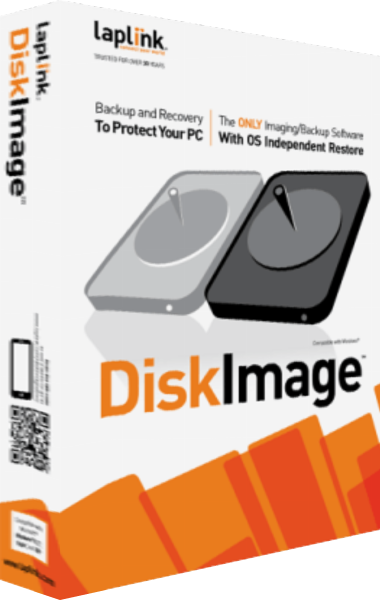
Laplink DiskImage
Create system images, back up selected files and prepare recovery workflows for Windows computers.