Product comparison
Laplink Sync vs Laplink PCmover Express
Copying files can be part of both workflows, but the intended result differs. Sync keeps chosen file locations aligned as you continue working. PCmover Express helps establish selected data, settings and user profiles on another Windows PC. Decide whether the devices will keep exchanging files or whether you are moving into a new setup.
Compare task coverage
| Task | Laplink Sync | Laplink PCmover Express |
|---|---|---|
| Purpose | Repeated file and folder synchronization | Selected file, settings and user-profile migration |
| Selection | Folder pairs and their synchronization direction | Transfer summary with account, folder and file-type selections |
| Later edits | Run synchronization again and review changed files and conflicts | Treat the result as a migrated setup; it is not an ongoing two-way sync relationship |
| Profiles and settings | File copies do not perform Windows profile migration | Transfers selected settings and user profiles |
| Installed applications | Does not install applications by synchronizing their folders | Express does not move installed applications; install them separately |
| Device workflow | Client-dependent computer and mobile file exchange | PC-to-PC migration through documented network, supported cable or transfer-file routes |
Which workflow fits?
Choose Sync when both locations remain in use
Laplink Sync is relevant for repeated exchange of selected documents or media. Specify the folder pair, decide whether changes travel in one direction or both, and inspect conflicts when the same file has been edited on each side.
Its published guide describes older clients. Verify availability and behavior on the actual devices; the documented iOS route supports pictures and videos rather than arbitrary document folders.
Choose Express when moving into another PC setup
Laplink PCmover Express covers selected files, settings and user profiles. Review accounts and transfer contents, then install required programs separately on the destination. A copied document or program folder does not install its application.
Express documentation includes direct connections and a saved transfer-file workflow. Check the options in the installed release. A transfer file is migration content, not a bootable system image or an ongoing synchronization history.
Combine the stages when the task calls for it
After a migration is verified, you may establish a separate folder-sync routine for locations you will continue using. Inspect its first comparison carefully so that an older copy does not replace the files you just moved.
Verify the result before relying on it
- Decide whether you need recurring file exchange or migration of selected profiles and settings.
- For Sync, test folder paths, direction, conflicting edits and deletion behavior on a small sample.
- For Express, inspect account selections, install essential applications and open their real working documents on the destination.
- Keep the original and independent recovery copies until the destination and any later sync routine are verified.
These are different workflow choices rather than a transfer-speed ranking. Neither synchronizing files nor an Express migration transfers installed applications.
Compared products
The PCmover card refers specifically to Express. Application-transfer capabilities of other PCmover editions do not apply to this comparison.
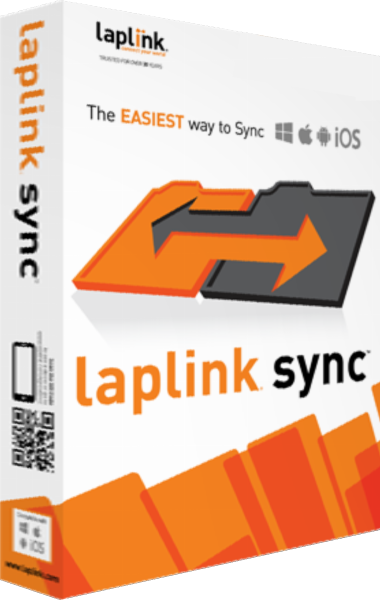
Laplink Sync
Synchronize selected files and folders between compatible devices with direction, conflict and deletion controls.
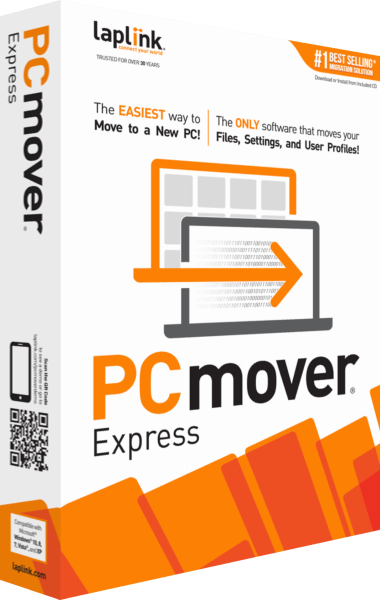
Laplink PCmover Express
Transfer selected files, settings and user profiles to a new Windows PC without moving installed applications.