Product comparison
Bitwar Cleaner vs CCleaner Professional
Both programs combine file cleanup with maintenance tools, but their workflows and feature names differ. Bitwar Cleaner includes a dedicated folder-migration task. CCleaner Professional combines disk and browser cleanup with Health Check, Performance Optimizer and update tools. Compare the installed releases and the exact changes selected.
Compare cleanup and maintenance tasks
| Task | Bitwar Cleaner | CCleaner Professional |
|---|---|---|
| Junk cleanup | Scan temporary files, logs, caches and Recycle Bin contents before cleaning | Disk and browser cleanup through the available Health Check and Custom Clean workflows |
| Duplicate files | Review detected copies and automatic selections before moving unwanted items to the Recycle Bin | Duplicate Finder is documented in current release notes; inspect its selection and destination controls |
| Storage relocation | Move selected large folders to another drive with Folder Migrator | Disk analysis or cleanup should not be treated as proof of the same folder-migration workflow |
| Startup and background activity | Startup-item, running-service and context-menu controls | Startup Manager and Performance Optimizer for selected background applications |
| Update tasks | Driver updating is listed in Bitwar release notes | Professional lists Driver Updater and Software Updater for supported targets |
| Review and repeat use | Review selected items within the chosen task | Review Health Check categories, exclusions and the available maintenance settings |
Which workflow fits?
Consider Bitwar when relocation is part of the storage task
Bitwar Cleaner combines removing unwanted content with relocating selected folders that you want to keep. Treat these as separate operations: identify deliberate duplicate backups, check the destination drive and verify folder access after a move.
Consider CCleaner for cleanup alongside update and background controls
CCleaner Professional provides disk and browser cleaning plus Performance Optimizer and update tools. Check the actual CCleaner release for Duplicate Finder, Startup Manager and selection controls, since screens and behavior change between major releases.
Review current tools rather than assuming older behavior
CCleaner release notes document changes to duplicate selection, moving files and Startup Manager. Use the installed interface to check the actual options. An older tutorial is not proof that the same matching rules or controls are available in a current release.
Duplicate files can be intentional backups or copies required by different applications. A matching name or content hash does not decide which location should be retained. Folder migration also changes where wanted files live, whereas cleanup or duplicate removal discards selected content.
Review selections and check the outcome
- Inspect a familiar folder and record the copy or location that applications actually use.
- Review duplicate selections and cleanup exclusions instead of accepting a broad removal list unchecked.
- Handle driver or software updates as separate tasks and confirm the proposed target.
- Verify retained files, folder access and application behavior after the selected maintenance operation.
Evaluate the actual file or settings change and normal application behavior. This comparison does not report measured boot-time, memory-use or application-speed improvements.
Compared products
Choose the installed edition and maintenance task around the files, applications and settings you intend to change.
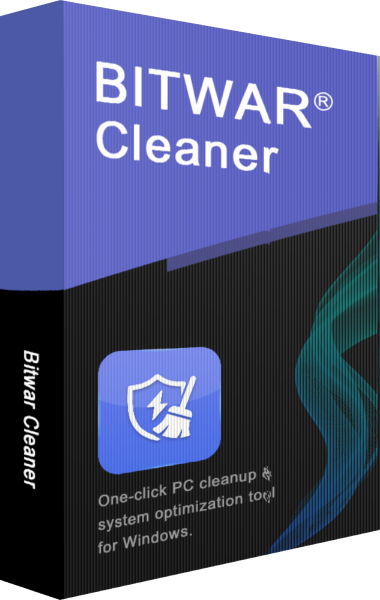
Bitwar Cleaner
Clean unwanted Windows files, review duplicates, move large folders and manage PC maintenance settings.
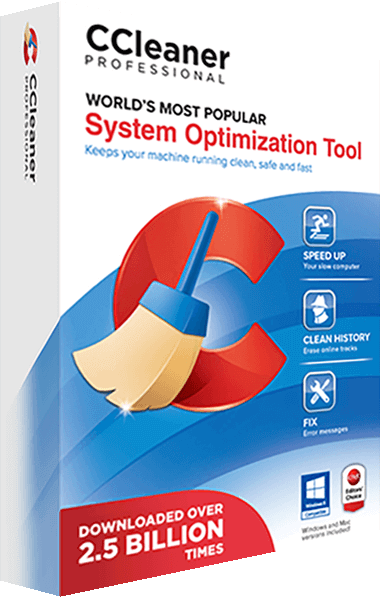
CCleaner Professional
Clean up Windows files and manage performance, software updates, and drivers with CCleaner Professional.