Product comparison
WinZip Privacy Protector vs iolo Privacy Guardian
The products overlap in clearing locally stored browser data. WinZip exposes scan areas and selected deletion. Privacy Guardian combines recurring cleanup with a website whitelist, a separate saved-password setting and a browser fingerprinting-protection extension.
Compared products
Review the selected catalog products and the controls available in the edition you intend to use.
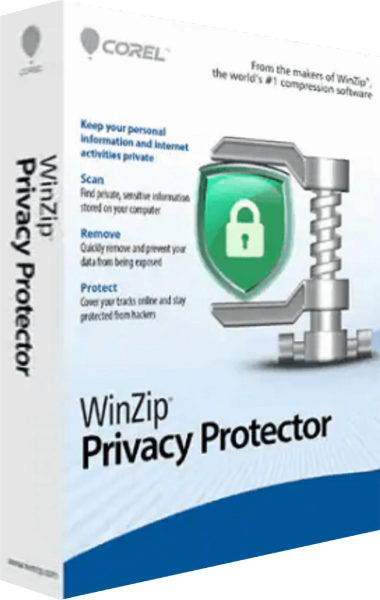
WinZip Privacy Protector
Find and selectively remove stored personal information, saved browser credentials, history and cookies from a Windows PC.
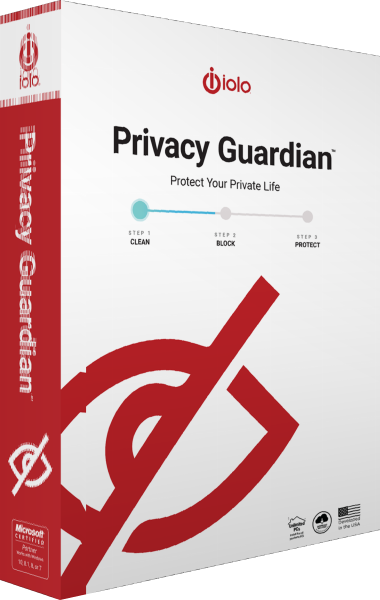
iolo Privacy Guardian
Manage browser traces, schedule cookie cleanup and configure tracking protection and selected Windows privacy settings.
Compare privacy workflows
| Task | WinZip Privacy Protector | iolo Privacy Guardian |
|---|---|---|
| Manual review | Inspect findings from chosen scan areas | Choose browsing-data categories before manual clearing |
| Cookies to retain | Review cookie findings before selected removal | Website whitelist retains selected site data |
| Saved passwords | Usernames and passwords are a selectable scan area | Saved Passwords is configured separately from the website whitelist |
| Recurring operation | Scheduled scans and Active Cleaning checks | Automatic browsing-data clearance with scheduling controls |
| Browser tracking | Local cleanup removes selected stored records | Fingerprinting-protection extension setup is a separate workflow |
| Windows settings | Configure scan areas and program behavior | Selected Windows data-collection controls |
Which workflow fits?
Consider WinZip for reviewing stored personal information
WinZip Privacy Protector is a candidate when you want to inspect selected categories of personal information before deleting records. Keep needed credentials accessible elsewhere and review findings before removal: the cleanup has no built-in undo.
Consider Guardian for recurring cleanup and tracking controls
iolo Privacy Guardian is relevant when retaining trusted site data is part of a recurring cleanup routine. Configure its website whitelist and saved-password setting independently. Tracking protection requires checking extension availability and enabling it in each browser you use.
Removing local traces and limiting future browser tracking are different tasks. An enabled extension does not establish complete anonymity, and a cookie whitelist should not be treated as a saved-password retention setting.
Check the selected controls
- List the browser profiles, website sessions and saved logins you need to keep.
- Configure the website whitelist and saved-password setting separately.
- Check that the tracking-protection extension is available and enabled in the intended browser.
- Run a limited manual cleanup, check sign-in behavior and then review recurring settings.
Compare the same browsers and profiles using the installed releases. Local cleanup does not delete records held by websites, and a count of findings is not a measurement of tracking-protection effectiveness.
Explore more
- WinZip Privacy Protector vs VIPRE Privacy Shield
- WinZip Privacy Protector vs Ashampoo Privacy Inspector 2
- WinZip Privacy Protector vs CCleaner Professional
- WinZip Privacy Protector vs Ashampoo WinOptimizer Pro 29
- WinZip Privacy Protector vs Ashampoo AntiSpy Pro
- Privacy tools overview
- PC maintenance and optimization overview
- Keep independent copies of important files