


Find personal information and activity traces on your PC
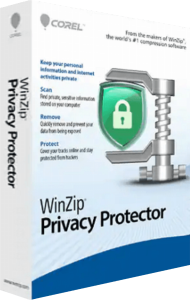
WinZip Privacy Protector scans a Windows computer for stored personal information and records of activity. Its scan categories cover items such as saved browser credentials, browsing history, cookies, contact details and chat history.
Use the findings to see which records remain on the computer and decide what you want to keep. Review the purpose of each item rather than treating every stored preference or history entry as something that must be removed.
Choose the categories you want to inspect
The Scan Areas settings let you enable or disable categories before scanning. Available areas include usernames and passwords, profile information, browser history, instant-messaging history and cookies.
Start with the category relevant to your task. For example, reviewing browsing history is a different decision from deleting saved login details. A narrower selection makes the results easier to assess before applying a cleanup.
Review selected records before permanent removal
After a scan, review the findings and choose which records to delete. Privacy Protector does not provide an undo or restore option for items removed by its cleanup.
Make sure you can access your accounts without relying on the saved credentials you plan to delete. Removing cookies may also sign you out of websites or reset preferences. Begin with a small selection and check the result before widening the cleanup.
Schedule checks and manage automatic operation
Privacy Protector includes scan scheduling and an Active Cleaning feature for automatic privacy checks. Startup behavior can be configured separately, and the General settings include an automatic update option.
Review the selected scan areas before enabling recurring operation. Choose settings that preserve information you still need, then check the first scheduled run to confirm that the configuration suits your routine.
Understand the scope of local privacy cleanup
The cleanup concerns information stored in supported areas of the computer and its browsers. Deleting a local history entry does not delete the corresponding account activity or records held by a website.
When preparing a shared computer for another user, review the local records you want to remove and sign out of accounts you no longer want accessible. Treat website account settings and local cleanup as separate tasks.
Choose privacy cleanup or another maintenance tool
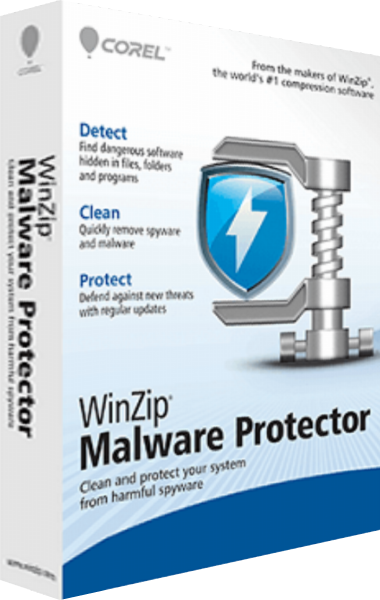
For examining files and system areas for malicious software, explore WinZip Malware Protector. For invalid or leftover Windows registry entries, see WinZip Registry Optimizer.
The WinZip software overview brings these products together. Match the tool to the records or system area you want to manage before making changes.
Browse the privacy tools category for related products and comparisons of local data cleanup, browser traces and privacy controls.
Compare WinZip Privacy Protector
Compare personal-data scans, browser cleanup, tracking controls and wider privacy tools.
- WinZip Privacy Protector vs VIPRE Privacy Shield
- WinZip Privacy Protector vs Ashampoo Privacy Inspector 2
- WinZip Privacy Protector vs iolo Privacy Guardian
- WinZip Privacy Protector vs CCleaner Professional
- WinZip Privacy Protector vs Ashampoo WinOptimizer Pro 29
- WinZip Privacy Protector vs Ashampoo AntiSpy Pro