
Scan for malware and review what was detected
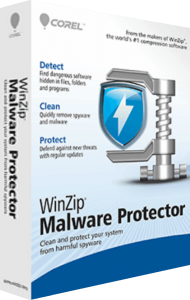
WinZip Malware Protector scans a Windows PC for threats such as spyware, adware, Trojans, keyloggers and browser hijackers. After a scan, review the detection names, file paths and item details before choosing what to remove.
Use the results to understand which files or system areas need attention. Record a detection's location when investigating repeated alerts so you can distinguish a recurring item from a new finding.
Choose a quick, deep or custom scan
Quick Scan checks selected locations commonly targeted by malware. Deep Scan examines the system more extensively, while Custom Scan lets you choose particular files, folders or drives. Scan settings also provide controls for areas such as memory, the registry and the file system.
Match the scope to your task. A focused scan helps investigate a particular location; a broader scan is useful when you need to examine more of the computer. Allow the selected scan to finish before reviewing its results.
Manage quarantined items, exclusions and scan logs
The quarantine area lists isolated detections and provides restore and permanent-delete controls. The Ignore List excludes selected detections from subsequent scan results until the exclusion is removed. Scan logs retain detection details and can be exported in XML format.
Review a suspected false positive before restoring it or creating an exclusion. Keep exclusions specific and revisit them when circumstances change. Save a relevant log when you need to compare scan results or investigate an issue.
Schedule scans and update threat definitions
Configure a scan to run once, every day or on selected weekdays. Automatic definition updates are controlled separately in the updater settings, so scan scheduling and threat-data updates can be managed independently.
Choose a time when the computer is usually available, then check that the scheduled scan has actually completed. Review the update status before investigating a new detection or repeating an earlier scan.
Review alerts from the real-time shields
The real-time protection shields provide alerts for monitored activity, including changes to the Windows hosts file. Allow and block controls let you respond to these alerts, and the associated lists record previous decisions.
Check which application triggered an alert and what change it is attempting. Review saved decisions after removing or replacing software so that an old permission does not remain unnoticed.
Choose malware inspection or archive management
Malware Protector focuses on threat scanning and cleanup. For creating, extracting and organizing compressed archives, explore WinZip Standard Suite. These products serve different everyday tasks.
Our antivirus software overview and internet security software overview cover other protection workflows. Compare the scanning, monitoring and additional security features you need when choosing software.