Product comparison
WinZip Malware Protector vs iolo Malware Killer
WinZip Malware Protector provides selectable scans, scheduling, detection records and configurable shields. Malware Killer is documented as an on-demand tool for finding and removing existing malware. Compare the investigation and cleanup workflow with the recurring checks or monitoring controls you need.
Compare scanning and protection
| Task | WinZip Malware Protector | iolo Malware Killer |
|---|---|---|
| Main role | Malware scans, cleanup and monitored-activity alerts | On-demand scanning and removal of existing malware |
| Selecting a scan | Quick, deep and custom modes with target-area settings | Choose from the scanning controls in the installed release |
| Detection analysis | Threat definitions and item details such as names and paths | Suspicious-file analysis using machine learning and reputation information |
| Managing findings | Quarantine, restore, delete and Ignore List controls | Inspect reported items and the available removal actions |
| Recurring activity | One-time, daily and weekly scan schedules | The documented role is an on-demand investigation |
| Additional workflow | XML log export and configurable real-time shields | Standalone activation within the shared iolo installation framework |
Which workflow fits?
Choose WinZip for recurring checks and detailed scan records
WinZip Malware Protector provides a schedule and explicit quarantine, exclusion and log controls. Those options are useful when you need to compare a recurring finding with the result of an earlier scan.
Choose Malware Killer for an on-demand investigation
iolo Malware Killer focuses on existing infections and suspicious-file analysis. Review the item classification and the result of removal, keeping its on-demand role distinct from the antivirus protection already configured on the computer.
An iolo installer can expose several products, but Malware Killer activation does not grant every suite component. For WinZip, check the particular shields enabled in the installed release. Scan completion, a scheduled job and continuous antivirus protection describe separate parts of the setup.
Review the protection setup
- Confirm the active product rather than relying on the name of a shared installer.
- Review update status and the scan scope before starting a check.
- Inspect reported paths and classifications before selecting a cleanup action.
- Review the remediation result and the ongoing antivirus status separately.
Scan controls and feature lists describe available workflows, not a measured detection ranking. Review uncertain findings before permanent deletion or exclusion, and use completed scan results alongside the status of ongoing protection.
Compared products
Review the selected catalog products and the active edition or component needed for your task.
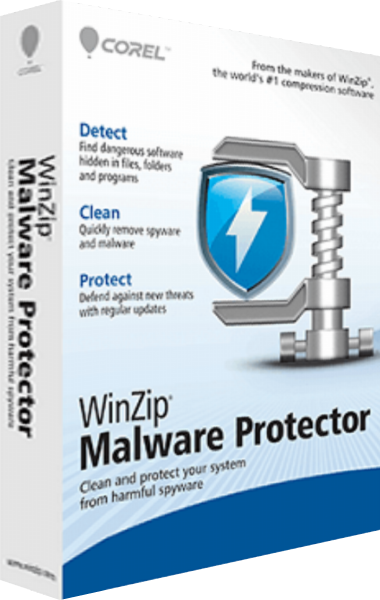
WinZip Malware Protector
Scan for malware, review detections and manage cleanup with scheduled scans, definition updates, quarantine and logs.
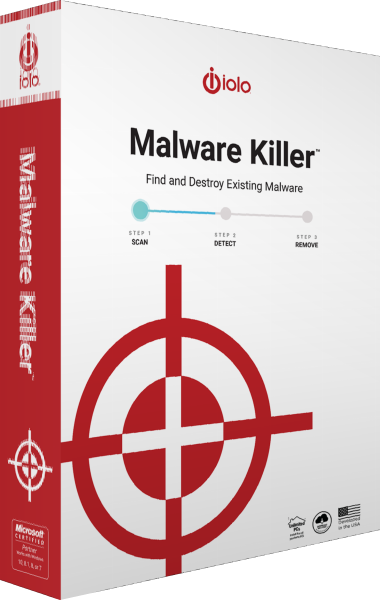
iolo Malware Killer
Scan Windows computers on demand to detect and remove existing malware alongside ongoing antivirus protection.