

Clean up temporary files and reclaim disk space
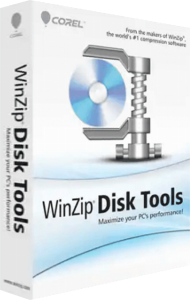
WinZip Disk Tools combines disk cleanup and maintenance functions for a Windows PC. Its cleanup tools find junk and temporary files that can occupy storage without being part of your working documents.
Begin by deciding what you want to achieve: recover space, inspect drive performance or maintain a hard disk. Check the selected files before deleting them and compare available space afterward to assess the result.
Find duplicate files and decide which copies to keep
The duplicate-file search helps identify repeated files for removal. Use it to review collections that have accumulated extra copies through downloads, imports or manual copying.
Check each file's location and purpose before deleting it. A second copy may be an intentional backup or belong to a project that expects it in a particular folder. Keep at least one verified copy of anything you need.
Distinguish hard-drive defragmentation from SSD optimization
Disk Tools includes hard-drive scanning and defragmentation. Defragmentation reorganizes file placement on a mechanical hard drive; it is a different task from deleting temporary files to reclaim space.
Windows treats HDD defragmentation and SSD TRIM as different optimization operations. Check the type of drive before choosing maintenance settings rather than applying a hard-drive workflow to every storage device.
Use monitoring and benchmarks to inspect a drive
Monitoring and maintenance functions help examine drive condition, while benchmark tests provide a way to measure performance. These tools support a more focused investigation than assuming that every slow task has the same cause.
Compare results under similar conditions, with unnecessary background work closed. Record which drive and test you used so that a later result is meaningful. A benchmark measures performance during the test, not the reliability of every file on the drive.
Plan a maintenance session around your data
Keep a separate backup of important files before a substantial cleanup. Review duplicate candidates, check the intended drive and perform one type of maintenance at a time so you can assess what changed.
Afterward, confirm that the files you kept still open and that the applications you use behave normally. Software maintenance cannot repair physical drive damage, and monitoring does not replace a backup.
Choose disk cleanup, privacy cleanup or driver maintenance
Disk Tools focuses on storage cleanup and drive maintenance. For saved personal information and browser activity traces, explore WinZip Privacy Protector. For device driver updates, see WinZip Driver Updater.
The WinZip software overview brings these products together. Choose the tool that addresses the files, device or system area you actually want to manage.
Browse disk optimization software for related drive-maintenance tools and comparisons of cleanup, analysis and HDD or SSD workflows.
Compare WinZip Disk Tools
Compare disk cleanup, duplicate-file review, storage analysis and HDD or SSD maintenance workflows.