
Find available updates for your device drivers
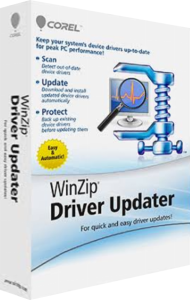
WinZip Driver Updater scans a Windows PC and recommends driver updates for its hardware. Device drivers let Windows communicate with components such as graphics cards, network adapters, sound devices and printers.
Use the scan results to identify which device an update belongs to. When investigating a particular issue, note how that device behaves before making changes so you can compare the result afterward.
Review manufacturer-sourced updates before installation
The program sources driver updates from original equipment manufacturers and displays driver status in its scan results. You can update a selected driver or use Update All in the registered product.
For a focused change, let one installation finish before starting another. Follow any restart prompt, then test the affected hardware. An available update is a maintenance option, not a guarantee that it will resolve every performance issue.
Back up drivers and restore an earlier configuration
Driver Updater backs up original drivers when installing updates. Its Backup Manager also lets you create a complete driver backup or save a specific driver at a time you choose. An optional setting creates a Windows restore point before updates.
If a new driver causes trouble, load a dated backup, select the drivers to restore and complete the restore process. Restart the computer afterward and check the device again. Keep the relevant backup until you have tested the new configuration.
Exclude a driver update you want to skip
After scanning, right-click an update and choose the option to exclude it from future scans. The Driver Exclusion List retains that choice; remove the entry when you want the update considered again.
This helps preserve a driver configuration you have deliberately chosen. Review exclusions after replacing hardware or resolving a compatibility issue rather than leaving an old decision in place indefinitely.
Schedule checks and confirm the outcome
The scheduler is available under Options and Schedule. Choose your scan preferences and apply them to arrange future checks without having to remember every manual scan.
After an update, scan again to check the reported driver status, then test the hardware in everyday use. For example, check audio playback, print a test page or verify the network connection, depending on which device changed.
Choose the tool for the maintenance task
Driver Updater focuses on hardware drivers. For invalid or leftover registry entries, explore WinZip Registry Optimizer. For scanning files and system areas for threats, see WinZip Malware Protector.
The WinZip software overview brings these products together. Match the tool to the issue you are investigating and assess the result of each change before moving on to another task.
Browse the driver updater category for other catalog products and comparisons of driver scanning, update and recovery workflows.