Product comparison
WinZip Driver Updater vs Auslogics Driver Updater
Both products compare installed device drivers with available updates and provide backup and restore controls. WinZip includes a manual Backup Manager, exclusions and scheduling. Auslogics provides hardware-matched recommendations and an Ignore List, with some update and scheduling controls depending on the edition.
Compare driver workflows
| Task | WinZip Driver Updater | Auslogics Driver Updater |
|---|---|---|
| Driver inspection | Driver status and available manufacturer-sourced updates | Installed and recommended driver details with hardware matching |
| Installation selection | Selected updates or Update All in the registered product | Single or multiple updates depending on edition |
| Backups | Automatic backup before updates plus manual all-driver or single-driver backups | Driver backup tools; review edition scope |
| Restoration | Load a dated backup and choose drivers to restore | Backup and restore workflow for saved driver versions |
| Skipped updates | Driver Exclusion List | Configurable driver Ignore List |
| Recurring scans | Configurable scan scheduling | Scheduled scans subject to edition |
Which workflow fits?
Choose WinZip around its Backup Manager and update controls
WinZip Driver Updater provides a dedicated workflow for saving all current drivers or a specific one. Compare those choices with the single device or group of devices you intend to update.
Choose Auslogics around hardware details and edition scope
Auslogics Driver Updater is relevant when you want to inspect installed and recommended driver details before selecting an update. Check the active edition for batch updates, scheduling and the recovery controls you need.
A similar device name does not establish that two packages are interchangeable. Review the device and version information, keep intentional exclusions and test the hardware after the change. Compare backup access in the selected edition rather than relying on the scan results alone.
Check the update and recovery steps
- Identify the device you intend to update and compare the version details.
- Review the active edition and the allowed update-selection workflow.
- Check backup, restore and Ignore List or exclusion controls.
- After any restart, test the device in normal use and review the completed update.
An available update is a maintenance option rather than a measured performance improvement. Compare the same hardware task before and after a change, and keep the relevant driver backup until the new configuration has been checked.
Compared products
Review the selected catalog products and the edition needed for your update and recovery workflow.
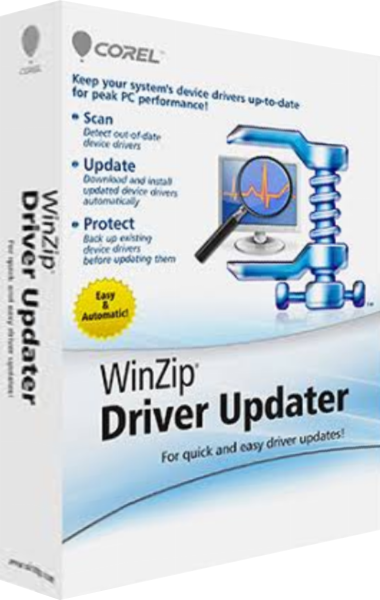
WinZip Driver Updater
Find and install device driver updates with tools for driver backups, restoration, exclusions and scheduled scans.
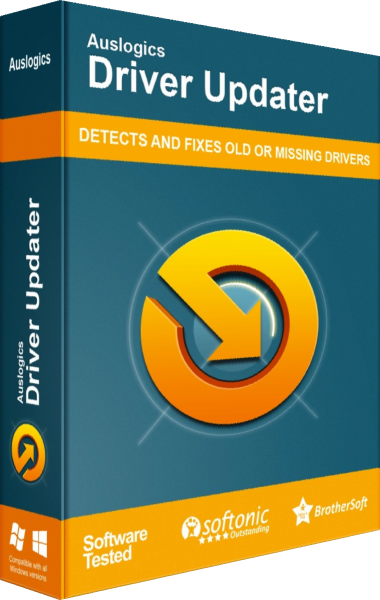
Auslogics Driver Updater
Scan Windows device drivers and review updates with backup and restore tools.
Explore more
- WinZip Driver Updater vs Ashampoo Driver Updater
- WinZip Driver Updater vs ReviverSoft Driver Reviver
- WinZip Driver Updater vs IObit Driver Booster Pro
- WinZip Driver Updater vs AVG Driver Updater
- WinZip Driver Updater vs iolo Updater
- Driver updater software overview
- PC maintenance and optimization overview
- Keep independent copies of important files