Product comparison
WinZip Driver Updater vs iolo Updater
WinZip Driver Updater focuses on hardware drivers. iolo Updater checks both supported applications and device drivers. Compare their driver backup, restoration and selection controls first, then decide whether application updating belongs in the same routine.
Compare driver workflows
| Task | WinZip Driver Updater | iolo Updater |
|---|---|---|
| Update scope | Device-driver scanning and update recommendations | Update checks for supported applications and device drivers |
| Selection controls | Selected driver updates or Update All in the registered product | Manual selection of application and driver updates |
| Backups | Automatic update-time backups plus manual all-driver or single-driver backups | Driver backup controls |
| Restoration | Load a dated backup and select the drivers to restore | Restore drivers from available backups |
| Skipped recommendations | Driver Exclusion List | Ignore lists for selected applications and drivers |
| Recurring work | Configurable driver scan scheduling | Scheduled scans and downloads |
Which workflow fits?
Choose WinZip for a driver-focused workflow
WinZip Driver Updater is relevant when the task is identifying a hardware update, preserving the existing driver and managing a device-specific exclusion. Its Backup Manager keeps manual driver copies within the same application.
Choose iolo Updater when application updates are also needed
iolo Updater brings supported program updates and driver checks into one view. Review those two lists separately and configure the schedule and Ignore Lists around the software and hardware you actually manage.
Driver restoration applies to saved drivers; it should not be assumed to undo every application update in the same session. iolo Updater is a separate product from the standard System Mechanic maintenance tools. Confirm the active product and supported update list before setting a recurring routine.
Check the update and recovery steps
- Confirm the product activation and distinguish application updates from device-driver updates.
- Inspect the selected device, version and driver backup before installation.
- Review ignored items and the timing of scheduled scans or downloads.
- Test the affected hardware after a driver change and the affected application after a software update.
An available update is a maintenance option rather than a measured performance improvement. Compare the same hardware task before and after a change, and keep the relevant driver backup until the new configuration has been checked.
Compared products
Review the selected catalog products and the edition needed for your update and recovery workflow.
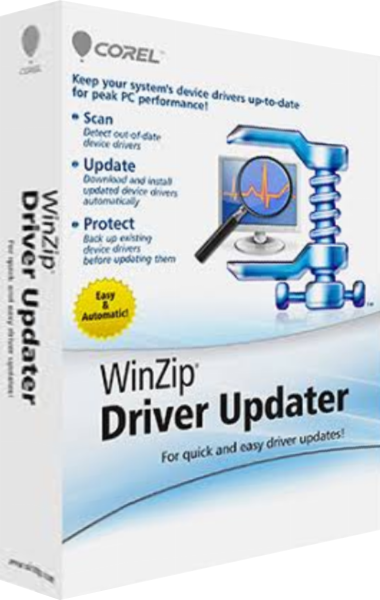
WinZip Driver Updater
Find and install device driver updates with tools for driver backups, restoration, exclusions and scheduled scans.
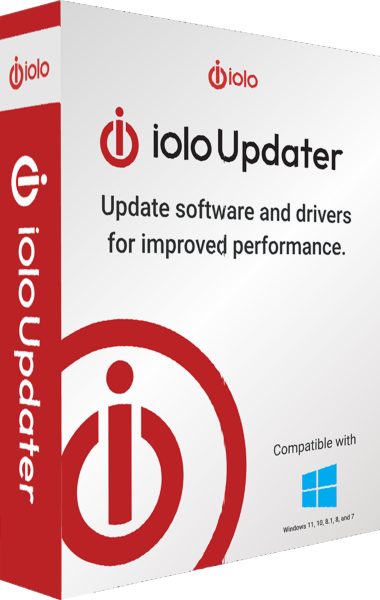
iolo Updater
Check Windows applications and device drivers for updates, schedule maintenance and back up drivers before changes.
Explore more
- WinZip Driver Updater vs Ashampoo Driver Updater
- WinZip Driver Updater vs Auslogics Driver Updater
- WinZip Driver Updater vs ReviverSoft Driver Reviver
- WinZip Driver Updater vs IObit Driver Booster Pro
- WinZip Driver Updater vs AVG Driver Updater
- Driver updater software overview
- PC maintenance and optimization overview
- Keep independent copies of important files